Sticky Notes and Technology-Helping Teachers in the Classroom

Quickschools logo Guest Article (QuickSchools)

Who doesn’t love sticky notes? Sticky notes are perfect for quickly jotting down notes and ideas, and we can stick them anywhere. We use them every day in our homes and offices, and also in the classroom. There are hundreds of ways that teachers use sticky notes. Here are some classic examples:

–Make a seating chart. Students love the bright colors and teachers can change a student’s seat simply by moving a sticky note.

–Keep notes about students’ progress and stick them in a grade book for easy reference during parent/teacher meetings and end-of-the-semester grading.

–Create a colorful classroom calendar to announce daily activities, school events, and project due dates. Calendars can be easily rearranged using sticky notes.

–Students love sticky notes, so let students use them to write questions and comments and stick them on a special community board.

We love sticky notes because they are colorful, portable, and can accommodate almost any activity, so it is exciting to learn that technology has caught up with the easiness and practicality of the sticky note. With a school management system, teachers can accomplish the same tasks as with sticky notes, only better.

School management software provides a way for teachers to write, organize, and access their notes electronically. Notes can be entered and accessed anywhere, anytime. It eliminates the need for clunky grade books which can be a challenge to keep organized (and can have a bunch of sticky notes hanging out of them).

The classroom forum feature enables students to ask questions and share ideas with the teacher and the class outside of the classroom. The forum can also be used as a fun way to engage students in a classroom conversation or debate using the texting technology that they love.

And school management software not only helps teachers, but it helps parents and students, too. They have access to the classroom calendar, assignments, projects, grades, and attendance right from their home computer.

Another tremendous benefit of school management software over sticky notes is that it is always available. Teachers don’t have to wait to get back to their classrooms, students don’t have to wait to get help, and parents can keep track of their student’s assignments and progress on a daily basis.

Sticky notes will always be used in the classroom in colorful displays and as fun bulletin boards. But when it comes to classroom organization, accessibility, and communication, then school management software is the best tool to help schools, teachers, and students succeed.

For more information about how QuickSchools school management software can help your school, visit QuickSchools.com.

Google


12 Quick Tips for Writing a Professional Email

mail email.jpg

By Dr. Barrett Mosbacker

This article has been adapted from an article of the same name posted on About.Com: Grammar and Composition.

How you communicate is essential for your effectiveness and leadership. Spending a few minutes reflecting on how to improve your communications can enhance your leadership and help you achieve the results you are seeking.

Despite the popularity of texting and social media, email remains one of the most common forms of written communication–and the most commonly abused. Consider this email message recently sent to all staff members on a large university campus:

It is time to renew your faculty/staff parking decals. New decals are required by Nov. 1. Parking Rules and Regulations require that all vehicles driven on campus must display the current decal.

Instead, consider how much nicer and more effective the email would be if we simply added a “please” and addressed the reader directly:

Please renew your faculty/staff parking decals by November 1.

Of course, if the author of the email had been keeping his readers in mind, he might have included another useful tidbit: a clue as to how and where to renew the decals.

The Tips

1. Always fill in the subject line with a descriptive topic that means something to your reader: Not “Decals” or “Important!” but “Deadline for New Parking Decals.” Keep it short and descriptive. Taking time to write a good subject line has two advantages: 1) It helps the recipient know why the email is important and should be read and 2) It will help you and the recipient find the email later if needed. Never leave the subject line blank.

2. Do not “hijack” an email. Hijacking is starting a new subject in an existing email conversation. This is confusing and makes finding the needed email later much more difficult.

3. Put your main point in the opening sentence. Most readers won’t stick around for a surprise ending. Get to the point immediately.

4. Never begin a message with a vague “This”–as in “This needs to be done by 5:00.” Always specify what you’re writing about.

5. Don’t use ALL CAPITALS (no shouting!), or all lower-case letters either. Using ALL CAPS is hard to read and comes across as rude and unprofessional.

6. As a general rule, PLZ avoid “textspeak” (abbreviations and acronyms): you may be ROFLOL (rolling on the floor laughing out loud), but your reader may be left wondering WUWT (what’s up with that).

7. Be brief. If your message runs longer than two or three short paragraphs, consider (a) reducing the message, (b) providing an attachment, or (c) picking up the phone and calling.

Keep you paragraphs short and whenever appropriate, use bullet points for key information. Consider bolding important information. For example, when sending an email about a meeting, consider using bullet points and bold to make it easy for your recipient to spot the important details: 

  • Meeting Date: xxxx 

  • Meeting Time: xxxx

  • Meeting Location: xxxx

8. Limit the number of recipients for your emails. To combat the wasted time associated with emails send and/or copied to too many employees, Ferrari just implemented a new policy putting the brakes on staff emails.

The luxury car manufacturer said it was targeting time wasting and inefficiency by limiting the number of people staff can send emails to. From now on, each Ferrari employee would only be able to send the same email to three people in-house, Ferrari said in a statement. "Ferrari's employees will be talking to their colleagues more from today forward," Ferrari said.

"To incentivise more efficient and direct communication within the company, the decision has been made to place much stricter limits on the number of emails being sent.'' … The injudicious sending of emails with dozens of recipients often on subjects with no relevance to most of the latter is one of the main causes of time wastage and inefficiency in the average working day in business,'' Ferrari said.

"Ferrari has therefore decided to nip the problem in the bud by issuing a very clear and simple instruction to its employees: talk to each other more and write less."

9. Remember to say “please” and “thank you.” Always be courteous, friendly, and professional.

10. Add a signature block with appropriate contact information (in most cases, your name, business address, and phone number. Do you need to clutter the signature block with a clever quotation and artwork? Probably not.

11. Edit and proofread before hitting “send.” You may think you’re too busy to sweat the small stuff, but unfortunately your reader may think you’re a careless dolt.

12. Finally, reply promptly to serious messages. If you need more than 24 hours to collect information or make a decision, send a brief response explaining the delay.

Following these tips will make your communication more effective and professional. They will also enhance your leadership and be a blessing to those who receive your emails.

Google

Six Simple Steps to Create an Engaging In-service Training Program

By Dr. Barrett Mosbacker

"That was a waste of time!" I have often muttered those or similar words to myself after sitting through a workshop. I walk in hoping that the workshop will be different from so many others, hoping that it will be engaging, informative, and practical. I usually emerge disappointed and frustrated.

That is the bad news. The worse news is that too often our teachers leave the training sessions WE conduct or arrange thinking or muttering the same thing--or worse.

After a few years of enduring fragmented training programs that are long on talk, short on practice, and with little accountability and follow-up, teachers soon learn to go through the motions of professional development. "This too shall pass" is the oft unspoken mantra. They make their appearance and then disappear with little evidence that the training changed anyone or anything. That is a waste of time, talent, and money.

It does not have to be this way. It should not be this way.

Professional development should be engaging and practical for teachers. It should also propel the school forward in achieving its core mission and strategic initiatives.

Here are six simple steps for creating an engaging and relevant professional development program.

Strategically Align Your Training Training programs should align staff values and skills with your school's strategic initiatives. For example, if one of your strategic initiatives is to enhance STEM instruction, then your in-service program needs to emphasize training in these areas. If one of your strategic initiatives is to strengthen student writing, then your in-service should focus on developing teachers' writing skills and their skills in teaching writing.

Surprisingly, aligning training with the school's strategic plan is rare. Usually, in-service training programs show little sustained connection with strategic objectives. As a result, training is disjointed with a different focus each year.

Road sign direction arrows confused.jpg

Take dead aim at your strategic objectives when planning your professional development program. Every tributary of training should flow into the strategic stream so that everything is moving in the same direction and mutually reinforcing. Your training should support your strategic plan and your strategic plan should inform your training plan.

Sustain Your Focus Old habits die hard. New skills require time and sustained practice to become new habits.

The best way to create positive change is to maintain sustained focus in your training. Focus on a few key concepts and skills over several years. Avoid the trap of annual de jour training. Serve up the same basic entree for several years but add courses to the training entree from year to year.

This one and half minute video beautifully illustrates the power of focus:

Apple WWDC 2013 Intro video dots.mov

Scaffold Your Training To maximize your ROI, professional development programs should be focused, sustained, and scaffolded.

Skills work build future plan.jpg

For example, if your goal is to improve student writing, you could design a focused, multi-year, scaffolded training plan. For example:

  • Year 1: Train teachers to improve their own writing skills. After all, you cannot teach well what you have not mastered.

  • Year 2: Train teachers how to effectively teach writing.

  • Year 3: Train teachers how to efficiently and effectively assess student writing.

  • Year 4: Train teachers to help students use technology to produce and publish their writing to authentic audiences.

Clearly the training sequence above can be shortened. By combining training objectives, the above training can occur over two to three years. The point is that one week of in-service training will not produce significant improvement in the ability of teachers to teach writing, or any other skill. Unless training is sustained and scaffolded, there will be marginal impact on the quality of student writing.

This should not be a revelation. It takes years to teach students to write well. Why do we assume that we can teach teachers to become experts at teaching writing, or any other skill, in one week?

Less is More We try to cover too much. I have been guilty of packing too much training into the in-service week. While well intentioned, this is not effective. Like too many clothes stuffed into a suitcase, teachers come out of training feeling pressed and wrinkled, not crisp and sharp, ready for a new year.

An individual can only absorb so much. The central question to ask is; "what are the two or three specific behaviors I want teachers to demonstrate in the classroom from this point forward?" The answer to that question should determine the scope of training. Discard or delay everything else.

Do an excellent job on a few things rather than a mediocre one of on many. Do not seek to cover topics, seek to master two or three.

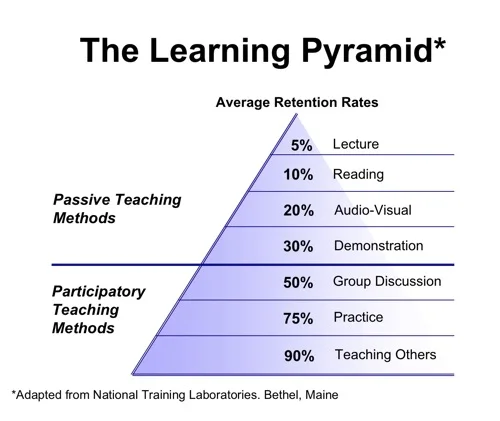
Hands-on Lectures play an important role in training but lectures seldom change professional practice. Consider the following diagram:

The-Learning-Pyramid.jpg

Reflect on the diagram for a movement. If the majority of your training is lecture-based then the majority of your training is lost, it is not affecting classroom practice.

Practice changes practice. There is a place for lecture, e.g., providing important background knowledge or explaining the rationale for the training but only hands-on-practice will change how teachers teach. Accordingly, the dominate form of training should the practice of new skills and concepts.

The best illustration I can give is technology training because we have all experienced bad technology training. The typical training involves a group assembled in front of a computer instructor. He or she demonstrates on the screen how to do "x." We watch, take notes, and perhaps fiddle with our computers. But, if we do not quickly start practicing what we have been taught we will forget. Remember, there is a difference between being taught and learning. Practice produces learning.

If, on the other hand, a short presentation of a technique is shown and ample time is provided for practicing the new skill, then we begin to understand and use it. The more time we have to practice the more likely we are to incorporate the skill into our work.

Here is a good rule of thumb; a ratio of 1:3 should be used for training. For each hour of training 15 minutes should be lecture or demonstration and the remaining 45 minutes for hands-on work. Doesn't this sound like good classroom teaching? If this is good classroom teaching it is good professional development.

Add Accountability

The adage, "what gets measured gets done" applies to teacher training. Because change is hard we need help and accountability. It is seldom enough to provide the rationale for change or even to practice new skills. If there is no consistent and transparent accountability for implementing new concepts and skills in the classroom there will be little change.

It is easy to make accountability a part of your professional development program. Revise your teacher evaluation instrument to include an assessment of the training provided. For example, if you provide training on techniques for teaching writing skills, add those techniques to the evaluation instrument so that they are assessed as part of the evaluation process.

Professional development can be effective and enjoyable. But is must not be ad hoc or an annual *de jour* experience. Good professional development is strategically aligned, is focused, sustained and scaffolded over several years. It is also hands-on with high levels of accountability for applying the training.

When these six elements of professional development are consistently practiced by school leaders, teachers are more likely to emerge from training declaring, "that was helpful, I can do that!"

Google

Employment Opportunity: Pastor Seeks Alchemist (well sort of)

Employment Opportunity: Pastor Seeks Alchemist (well sort of) By Mark Kennedy, ACSI Canada

Those of us whose minds are well stocked with enigmatic-historical trivia may recall the job description of an alchemist in the Middle Ages. Back then alchemists were charged with the task of finding a simple way to change base metals, like lead, into gold – a quixotic quest if ever there was one. And of course it was doomed to failure. As far as I know there is not a single record of success in that ‘vocation’ and maybe that’s why we don’t run into many aspiring alchemists these days.

The+AlchemistLast spring a pastor spoke to me about a serious concern in his church, one that I think is common across North America. He was troubled by his church teens and their negative attitudes towards spiritual things and he hoped ACSI could provide a seminar to fix the problem. No, these young people didn’t attend Christian schools. Their Christian training came from an hour or two a week of church service and youth group.

I wished I could have directed him to a Christian version of an alchemist – a sage who could pass on a simple formula to transform those leaden attitudes into gold. But I had tell him, when it comes to developing mature Christian lives and attitudes, a few hours weekly of Christian input simply ‘doesn’t cut it’.

How can a few hours of church compete with the influence of more than 30 hours weekly of secular education combined with a similar amount of exposure to anti-Christian messages in popular media? An hour or two of Christian training would be enough if the Christian life was a part time thing, separated from what some folks call “the real world”. Then it would be good enough just to act happy and virtuous while at church, or at least while other Christians are watching. But real Christian maturity hasn’t much to do with acting. It’s about being and it doesn’t come automatically at the moment of salvation.

The forming of Christian character takes consistent training intellectually and experientially under the guidance of mature believers. Consistency is the key. Paul warns about the dangers of frustrating children by giving them conflicting messages – like the ones they get at church as opposed to the ones that come from secular schooling, “Father do not exasperate your children; instead” (of exasperating them) “bring them up in the training and instruction of the Lord.”Ephesians 6:4 That parental responsibility extends beyond the home.

Then there’s the influence of other students – especially important for teens. Teen values and attitudes are significantly influenced by the company they keep, “Don’t be misled,” Paul said, “bad company corrupts good character.” 1 Cor 15:33; Christian elementary and high schools focus on forming distinctly Christian character while providing top quality academics. And, for the most part, Christian school students are the kind of ‘good company that reinforces good character’.

As I explained to the pastor, there’s no ‘one seminar alchemy’ for producing golden teen attitudes. But the simile of gold does come into it. You see, to most people gold ore appears to be pretty unpromising –mainly just hunks of grey rock. It takes a lot of focused, dedicated refining to get rid of the dross and bring out the valuable stuff. But in the end all the work and expense is worth it. So is Christian schooling.

How and Why I Went Paperless and How You Can Too: Part 3 Workflow--Putting it All Together

By Dr. Barrett Mosbacker

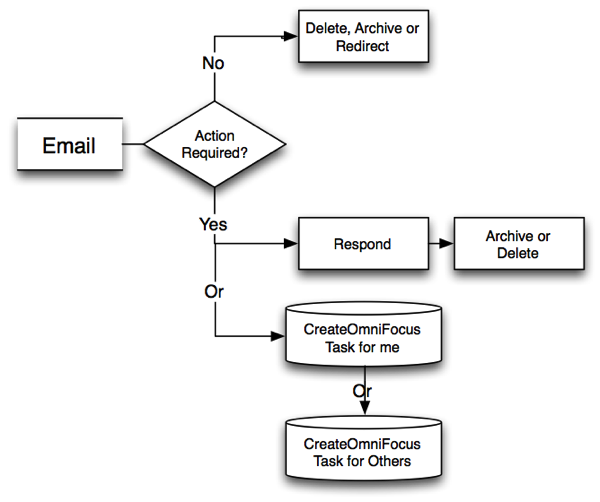
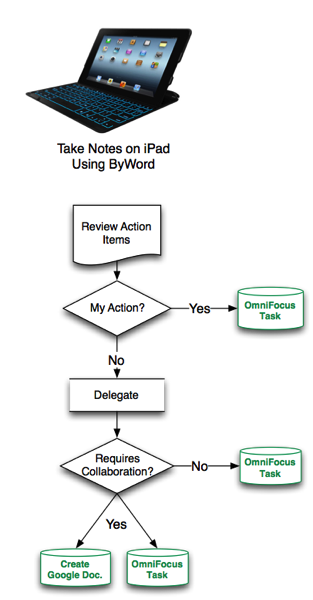
In my previous two posts in this series (Part 1: Why I went Paperless--There Had to Be a Better Way and Part 2:How I Went Paperless: What I Use) I explained why I have gone paperless and the hardware and software that I use. In this third and final article in the series I will demonstrate how I work paperlessly. I am also including diagrams to illustrate the process for emails, paper documents, and meetings. 

It is one thing to have a fleet of powerful applications at your disposal. It is quite another to develop a workflow using those applications that is easy, efficient, and dependable. The process of creating such a workflow is never done but I believe I have reached the point where I spend little time managing documents, communications, and applications and more time focused on what is important—people and projects.

Here, in brief, is a sample of how I have managed to create an almost frictionless, paperless workflow. This is obviously not comprehensive but I hope it provides an example of how to process all the information coming your way without paper.

Incoming Emails

I usually deal with email in batches (it is far more efficient that way). For each email I receive, I do one of the following: 

  • Delete it 

  • Archive it 

  • Forward/Redirect to the appropriate person

  • Delegate it as a follow-up or project for someone; I forward the email to him/her and simultaneously create a follow-up task in OmniFocus directly from the email

  • Create a task or project for myself

I do not use my email inbox to track todos and follow-ups!

NewImage.png

NewImage.png

Incoming paper

When I receive paper or printed documents from others, I do one or more of the following: 

  • I ask my staff to send it to me digitally—I do not accept paper from staff. If the document is from a non-school employee, I also ask for a digital version if I deem it appropriate and polite. 

  • Trash it 

  • Scan and archive it 

  • Scan and email the document to someone else as a delegated task or project and simultaneously create a follow-up task in OmniFocus directly from the email 

  • Create a task for myself if related to a project.

NewImage.png

NewImage.png

Meeting Notes

Here is how I handle meeting notes: 

  • I use ByWord to take my notes (see above for details) 

  • After the meeting, I create projects and/or tasks for others and/or myself in OmniFocus (OF) from the action items in my notes.

  • After creating the OF projects and/or tasks, I archive the notes in Evernote and link the notes to the tasks/projects in OmniFocus for reference. 

  • For a project involving more than one person, I create a collaborative document in Google Drive for those working on the project and link the Google document to the OmniFocus project.

NewImage.png

NewImage.png

OmniFocus

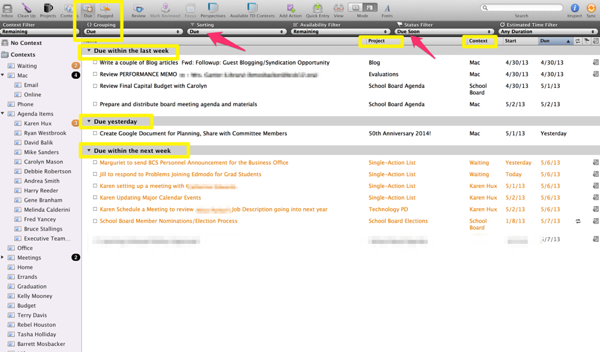
The following diagrams illustrate how the above processes look in OmniFocus:

The Due Date Perspective

NewImage.png

NewImage.png

Actions Items in Project Perspective

NewImage.png

NewImage.png

The Hard Work of Creating New Habits

I wish I could tell you this will be easy. It is not.

When first starting your journey to the paperless promise land you will have some mountains to climb and rivers to cross. You will initially increase your stress and reduce your productivity as you learn new programs and develop a new workflow. It takes time and consistency to master a new routine and form new habits. 

How long does it take to create a new habit? Accordingly to research, over two months. “We are all wired differently so how long it takes for us to form a new habit will depend on each person. The popular psuedo-myth is that a new habit forms after 21 to 28 days.  However, psychology research from the European Journal of Social Psychology seem to indicate that it takes around 66 days to truly ingrain a new habit into your brain.  At 66 days of continuous activity, that habit is going to be as much of a habit as it is ever going to be.  In other words, the action has become automatic and that habit is never going to get more habitual.”

In short, hang in there! This is not a sprint, it is a marathon.

Final Thoughts

If you find yourself struggling to manage the tsunami of information coming at you in paper and digital form, you find yourself working feverishly to juggle multiple projects and if you want to reduce stress and increase your productivity, I recommend that you consider going paperless. 

Give it try-going paperless will save you time, money, and stress once you master the tools and workflow. It will be worth the time and effort. At the end of a hard journey is a better place for your professional and personal life.  

Appendix: Table of Applications, Devices and Use

NOTE: You can download this Appendix as a PDF here.

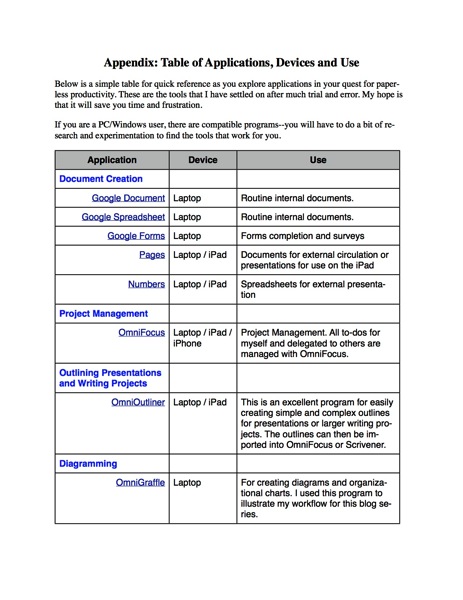
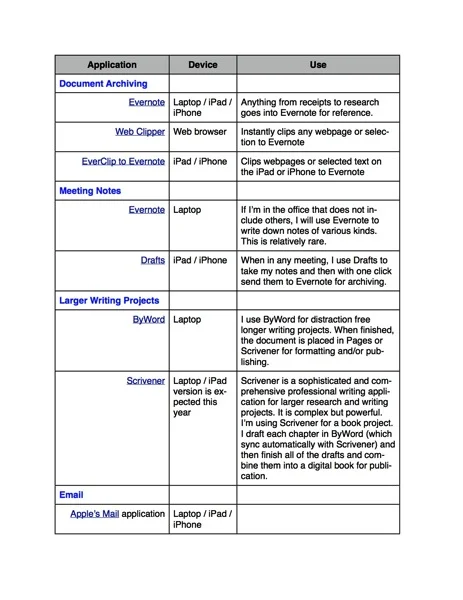
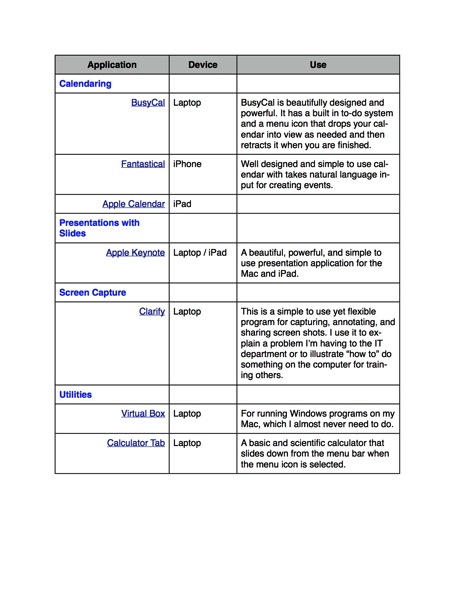
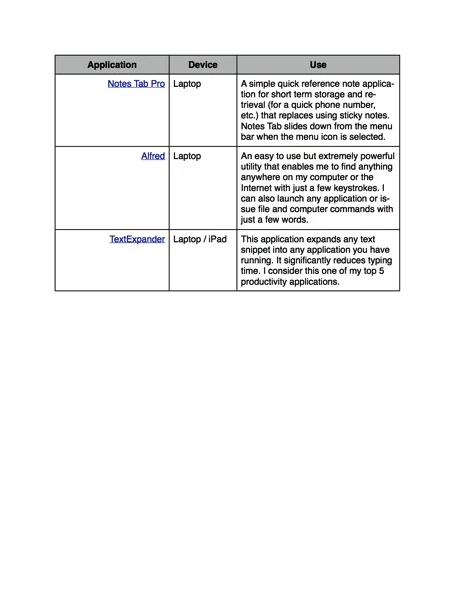
Below is a simple table for quick reference as you explore applications in your quest for paperless productivity. These are the tools that I have settled on after much trial and error. My hope is that it will save you time and frustration. 

If you are a PC/Windows user, there are compatible programs--you will have to do a bit of research and experimentation to find the tools that work for you.

Appendix Paperless Applications 1.jpg

Appendix Paperless Applications 1.jpg

Appendix Paperless Applications 2.jpg

Appendix Paperless Applications 2.jpg

Appendix Paperless Applications 3.jpg

Appendix Paperless Applications 3.jpg

Appendix Paperless Applications 4.jpg

Appendix Paperless Applications 4.jpg

Paperless Part 2: HOW I Went Paperless and What I Use

By Dr. Barrett Mosbacker

In my previous post (Part 1: Why I went Paperless--There had to be a better way), I explained what motived me to go paperless and my specific goals. I also showed you a picture of my office. This is my computer desktop; just as neat and again, I did NOT clean it up for this article. I have one folder on my desktop with two or three active documents. How can I have such a neat office and computer desktop? Because everything is digital and in its place to reduce stress and increase productivity.

Note: throughout this article you will find links to sample screen shots to illustrate how the applications are used.

My Mac Desktop.png

My Mac Desktop.png

It was not easy to change deeply ingrained habits. For my entire life I have handled paper. Over the years I developed a workflow that, well, worked-for paper. My process was familiar and comfortable. But, my workflow was developed around paper and filing cabinets, not digital communications and mobile devices.

Adding to the difficulty is the fact many people still operate in both the digital and analog worlds. I receive much unwanted paper in meetings, at conferences, and in the mail. And I receive an ever increasing avalanche of digital documents and communications.

Everything was jumbled together. Projects consisted of paper documents, digital documents, emails, and websites. Meeting notes were on legal pads with followup communications in email. Finding, producing, sharing, and consolidating information from the paper and digital worlds was becoming increasingly complex and frustrating.

The struggle was not convincing myself that I needed to go paperless. The struggle was finding the right combination of software and hardware and designing an easy to manage workflow that worked across platforms without unnecessary overlap and complexity. The struggle was also forcing myself to abandon old habits and create new ones.

After much trial and error, I can confidently declare that I am now happily and productively paperless. I can also assert that short of an apocalypse, I will never go back to using paper.

The information below is a summary of the tools I use and my workflow. I am not attempting to provide a step-by-step guide for these tools. Instead, my propose is to offer a model and way of thinking about these tools and workflow so that you can adapt them to your situation, needs, and preferences.

Hardware

For years I was a diehard PC and Windows user. My software and workflow revolved around the Wintel platform, including Microsoft Office. I have switched to Apple hardware and for most, not all, document production and communication I rely on cloud-based services such as Google. The reasons for the switch are explained below.

But—and this is important—this series of articles are not intended to promote one platform over another; one can be equally successful in moving to a paperless workflow using the Wintel platform. It is not necessary to switch to the hardware and software applications I have listed below. There are equally, and perhaps in some cases, better services and applications from other companies. The key is understanding what is needed to go paperless so that you can choose the best combination of hardware, software, and services to meet your needs. For me, after years using Windows software, I have switched to Apple and Google hardware, software, and services.

I use the following hardware: Macbook Pro Retina, iPad with a Logitech FabricSkin Bluetooth Keyboard Folio, an iPhone 5 and a Fujitsu scanner. I chose to move to Apple hardware because I became convinced that for my purposes they are more reliable and require less work to maintain. Because the hardware and software are designed by the same company they work seamlessly together. Apple support is rarely needed and is excellent in those rare instances when it is needed. Support is readily available by phone or from the local Apple store. The fact that the hardware is beautiful and pleasant to use is a bonus. I want to again emphasize, however, that for others the Wintel platform may be better.

Applications and Services

The following list is not comprehensive; it is a summary of the major applications and services I use for the majority of my work. For each application I will provide a brief reason for the selection and how it is used. Later I will share how I use the applications for my workflow.

Document Creation

Frankly, before switching to Apple and Google products I was nervous. Being a Microsoft and PC power user, I was concerned that I would lose the power and flexibility that I needed to get my work done. I was apprehensive that I may not have access to the best software and that I would have trouble integrating my workflow with colleagues and friends who were on the Wintel platform.

My fears proved to be unfounded. I didn’t lose anything—in fact, I gained a great deal. Whereas on the PC/Wintel platform I was restricted to Microsoft, Windows-based, and Google products, on the Apple platform I had access to every application made for all three platforms: Microsoft Office for the Mac, Apple’s iWorks and iLife application suites, and Google’s applications and services. I also had access to any Windows-based software I needed to run by running Virtual Box or Parallels on my Mac. In other words, I have the best of all worlds.

What surprised me the most is that I found myself not needing or wanting to use Microsoft products (except for the occasional complex Excel spreadsheet) or other Windows-based applications. I have found wonderful, and often superior, substitutes for everything I used on my PC. I have nothing against Microsoft. They sell arguably the most feature rich professional office software on the planet. If your work requires the production of complex spreadsheets and text documents, you cannot beat MS Office. I found, however, that for 95% of my work, I did not need the complex or advanced features. For those few (and they become rarer by the week) projects that require advanced features, I can fire up MS Office for the Mac and do whatever I need to do.

Google Apps (Documents, Spreadsheets, Forms, Drawings)

Google offers a full suite of products and services. You can find a comprehensive list here. Google’s applications provide the basic features most people need but they lack some advanced features. There are several advantages of using Google Apps (note: Microsoft’s Office 365 suite and SkyDrive offer similar features but I have found their collaboration capabilities to be less capable than Google’s). The apps are free or very low cost, they are always up-to-date, you do not have the overhead of maintaining and supporting the software, and most importantly for workflow, you can collaborate and share documents without the need to constantly send attachments in emails, although you can if you desire. For a good comparison between Google Apps. versus Office 365 click here. The author is a bit biased toward MS but it is a good comparison.

I use Google Apps (Documents and Spreadsheets) for creating basic documents, collaboration, and sharing. I also use them when I need to collaborate with people outside of the school. Google applications are my no frills, workhorse applications.

Apple Pages and Numbers

I use the Apple’s Pages application when I want to produce a slick, professional looking document or newsletter to send to others. I also use Apple Pages for all text-based presentations that I give. By saving the presentation as a Pages document in iCloud, I can easily access it on my iPad for my many speaking engagements. iCloud keeps both versions in sync. I may draft the document in Google Docs or ByWord on my Mac (for example, I wrote the draft of this article using ByWord: more on the reason for this below) and then pasted the content into Pages for polishing. I use the Drafts application when taking meeting notes on the iPad.

I use Numbers when I want to produce a basic but well designed spreadsheet with visually informative and appealing charts. Numbers is a good application but lacks many of the advanced features found in Excel.

Word and Excel for the Mac

Surprisingly, I no longer ever need or desire to use MS Word. I can open any Word document I receive in an email in Pages or Google Docs. I find MS Word to be a feature rich but bloated with a complex and distracting interface. Excel is unquestionably the most capable spreadsheet program you can buy. I use Excel when I receive an Excel spreadsheet from others. I also use it when I need to produce or work with a complex spreadsheet. There are times when there is no substitute for Excel. In those instances I fire up Excel for the Mac.

ByWord

Modern word processors can be distracting because they tempt one to fiddle with formatting the text. This creates distraction when you need to focus on your words--and just your words. This is why I use ByWord. It is a beautifully designed minimalist application that does two things extremely well: it enables you to write free of distraction and it syncs with your other products through iCloud and/or Dropbox. Click here for a screen shot of a draft I created for a blog article.

I have ByWord on my Mac, my iPad, and my iPhone. I can immediately begin work on a draft document whenever I have a few undistracted minutes, e.g., on the plane. Because it is minimalist in design, it also uses less battery power enabling me to work longer when I don’t have access to a power outlet.

Once the draft is finished in ByWord, I export it as an RTF or HTML file to Google or Pages for finishing. It can also be exported as a Word or PDF document.

Apple Keynote

Keynote is a fantastic application for producing compelling, fresh presentations. It is powerful and feature packed but easy to learn and use. Because it uses iCloud to sync seamlessly with the Mac and other iOS devices, I can produce a beautiful presentation and then use my iPad for the presentation. This is perfect for traveling to conferences. I produce the presentation on my Mac (you can also produce them on the iPad but the iPad version is a bit more limited), sync it to iCloud, and leave the laptop at home. At the conference, I connect my iPad to a projector and use my iPhone as the remote. Simple, light, and fast. And, if I make revisions to the presentation en route to the conference and make additional revisions after the presentation, all of the changes are synced to iCloud. When I open my Mac, the revised presentation is ready for me. This same process works with Pages and Numbers.

Keynote also syncs seamlessly with iPhoto and iMovie. Consequently, you have a simple and consistent way to add beautiful photos and compelling videos to your presentations and everything is always in sync and available across all of your devices.

Document Sharing and Archiving

Google Drive

Google Drive does three things extremely well: It is the access point for all of your Google applications and documents, it archives and saves your documents automatically, and it is the platform for collaborating on and sharing your documents. Google Drive also enables you to create, edit and save documents offline (using Google’s Chrome browser) so that you do not need an Internet connection to get work done. Once you are back online, Google Drive automatically saves and syncs your documents.

Evernote

Evernote serves a very specific and useful purpose. It is my primary repository for document archiving, retrieval, and sharing when I do not need to work on them. The distinction between Google Drive and Evernote is important. While there is overlap, e.g., both programs save, archive and sync your documents and information, Google Drive is best for “living, active” documents. Evernote is best for static reference material.

For example, any work related document that is being worked on, or that ever may need to be worked on by others, is in Google Drive. Letters, policy manuals, spreadsheets, schedules, etc., fall in this category and are on Google Drive.

Receipts, research articles, articles from the internet, User Manuals, and any other static document that is used for reference are in Evernote. I also store important personal documents in Evernote, e.g., insurance papers. That way, if there is a fire I still have access the critical documents. Although I could store these in Google Drive, Evernote is better at quickly capturing information from the web on your laptop or mobile device. It is ideal for quickly searching to find just what you need. If you have a Business Account with Evernote, you can also create a Business Library of reference material for employees, e.g., Technical How-To articles from the IT department, Employee Manuals, etc.

Communications and Calendaring

I average over 1,200 business emails each month (not counting personal emails). I also receive many phone calls and text messages. Efficiently managing and curating this flow of information requires the nimbleness of a ninja and the discipline of an Olympic athlete. It also requires the right tools.

I have tried just about everything available. I spent years on Outlook (including SharePoint) and was very comfortable with the program. It is powerful and designed for the enterprise. For the same reasons I have stated above, I decided that it was time for a change. As a school, we no longer wanted to be in the email and server business. We wanted our IT staff to focus on supporting technology integration in the classroom, not on managing email, SharePoint, servers, and antivirus software.

With our move to Google products, we also adopted Gmail, Google Calendar, Google Hangouts (for video-conferencing), Google+ (which we use for business related social media interaction), and a host of other applications that are integrated and cloud-based. As a consequences, we spend far less time (and money) managing email and calendars and we are able to integrate document creation and sharing with all of our digital communications. This enhances productivity, saves money and gives us capabilities that would otherwise be too complex and time consuming to manage.

I have vacillated between using Gmail and Google Calendar in the browser (Safari and Chrome) or using Apple’s Mail and Calendar applications (or 3rd party applications). After experimenting with many options, I have settled on Apple’s Mail for email and BusyCal for my Calendar application. While there are advantages to using the browser version of Google products, the overall hardware and application integration on the Mac and iOS devices is better when using Apple’s applications or well designed third-party applications like BusyCal. I have also found, after spending time to master it, that Apple’s Mail program is very powerful making it easy to process an overflowing inbox quickly. BusyCal is beautifully designed and powerful. It has a built in to-do system and a menu icon that drops your calendar into view as needed and then retracts it when you are finished. This saves valuable screen space and is one less window to manage.

For meetings and collaboration that do not require a face-to-face meeting but do require live communication rather than a torrent of emails, I use Google’s powerful Hangouts video-conferencing application. You can conduct a simultaneous video call with 10 people and share Google documents and/or your desktop during the call. It is a powerful program and is free. There is also an iOS application for Google Hangouts enabling you to place video calls from your iPhone or iPad when traveling.

Phone Calls

Going paperless works great for handling phone calls. My administrative assistant takes messages in a shared Google document titled “Dr. Mosbacker’s Messages.” Each morning she opens that document and enters the date. During the day she records the messages and return phone number. This document is an open tab on my browser. When I am ready to return calls, I click on the browser tab (from my Mac, iPad, or iPhone) and have all of the information I need. I can then make notes of the call in this same document and mark the call completed when I’m finished. If I ever need to find that message, person’s name, or contact information, I can search the message document from any of my devices. No paper, everything is archived and searchable. Click here for a screen shot of my messages.

Note Taking

I have a lot of meetings and I have to take a lot of notes. I want to do so in meetings without coming across like a geek. There are several challenges in taking digital meeting notes.

If you use paper, you are not paperless so you have to retype notes you need to keep (or scan them). You can’t efficiently share paper notes, and they are not immediately connected with your other documents and communications.

If you use a laptop in a professional meeting you can come across as geeky in some settings. The clacking keyboard is distracting and the screen puts a barrier between the attendees. And you are tempted to multitask (check email) rather than giving the attendees your undivided attention.

I have found the iPad to be the solution. It is light, is not distracting nor especially geeky, has long battery life and provides several note taking options not typically available on the laptop. You can type your notes using the silent virtual keyboard, you can use an iPad case with built in bluetooth keyboard (my preference), or you can handwrite your notes using a stylus with a note taking application like Notability. The best method will depend on the person and circumstances.

My objectives are to use as few applications a possible, produce digital notes, have them safely archived for future reference, and have an efficient way to delegate and keep up with tasks flowing from the meetings.

After much experimentation and no small amount of frustration, I have found a very effective and efficient system that meets my objectives. This is far simpler then it may sound but essentially I use and application called Drafts in combination with TextExpander—this program is reason enough to use a Mac!

As indicated above, I use ByWord for writing drafts of larger documents, e.g., a blog article, chapters in a book, etc. For meeting notes I use Drafts. It automatically saves your work and syncs it to your other iOS devices. It is distraction free, does not require much power, and works great on the iPad and the iPhone. When combined with TextExpender one can open Drafts and with a few quick keystrokes have TextExpander drop a meeting template into Drafts and you are ready to go.

One of Drafts most compelling features is the ability to send your meeting notes with just one click to Evernote, an email, Dropbox, OmniFocus, Twitter, Facebook, as a TextMessage and a host of other applications and services too numerous to list. You can also use “Open in” to export a draft to any other app installed that supports importing text files. Click here for an illustration.

You can type quietly on the iPad using the bluetooth keyboard case. After you have completed your meeting notes, including to-do items for yourself or others, you select each item and send it to OmniFocus (more on OmniFocus below) or Evernote (my preference because then all of my meeting notes are archived in the appropriate project notebook). For example, I have an interview template in TextExpander. Prior to the start of the interview, I open my iPad, fire up the Drafts app., and open the interview template with TextExpander. When the interview starts, I discretely take my notes in Drafts using the embedded template. After the meeting is over, with one click I send the notes to Evernote for archiving. No paper. No filing. And, I can always access these notes on any device, anytime, anywhere. I can also share my interview notes with my administrative assistant or others as needed.

Project Management

Finding THE project management tool has been my biggest challenge. For my purposes, the ideal project management application would:

  • Work on all of my devices.

  • Be powerful and flexible without being overly complicated.

  • Be developed and supported by a company that I trust and was confident would be around for a long time.

  • Integrate tightly with my other major applications (Google Docs, ByWord, Drafts, Gmail, Apple Mail, BusyCal, and Evernote).

  • Enable actions and viewing of projects, tasks, and documents by project, date, person, or context.

  • Alert me when projects were coming due, were due, or were late.

  • Give me the ability to create tasks or projects directly from emails, Drafts, or Evernote without copying and pasting.

OmniFocus does all of this and more. The capabilities will be briefly illustrated in the next article in the series but suffice it to say that OmniFocus integrates all of the above features into one powerful yet relatively simple product. That is no small feat! Click here for a sample screen shot.

In my next and final post (Part 3: Workflow--putting it all together) in this series I illustrate how I use the hardware and software to create a paperless workflow. I will also provide diagrams illustrating how the workflow works for emails, paper documents, and meetings.

Google

An Affordable Solution for AP Programs

An affordadable AP program image

By Dr. Barrett Mosbacker

Advanced Placement (AP) courses are an important factor for many parents and students who are considering enrolling in a Christian School. AP courses provide the highest achieving students the chance to study college level material. Parents and students see AP courses as an academic challenge, a way to better prepare for college, and an advantage on college applications. Yet many Christian schools trail their public school competitors in AP course offerings. Larger, well-funded public schools have the competitive edge among families with high academic standards because these schools can provide students a broad AP curriculum. How can Christian schools maintain their small class size and value-driven curriculum while competing with public and large private schools that provide a wide range of AP courses? Increasingly, Christian schools are looking online for the solution to this problem.

Online Advanced Placement courses allow Christian schools to easily expand their curriculum. Through online learning, courses can be tailored for the individual student. If you have a student interested in engineering, but your school does not provide an AP calculus course, online learning can be an efficient solution. Instead of losing that student, your school could provide a flexible and affordable online option for that student. Online learning keeps the education within your school. There  is no need to construct complicated relationships with public institutions in order to serve single student needs.

Online AP courses are the most affordable solution for Christian schools in many situations.

Who pays for it? The cost of offering AP courses can be covered through tuition and additional fees paid by families. Schools can provide access to the online course, but students and their families pay the fee. Under some arrangements, the family also pays an extra fee that can help a school pay for administrative overhead and other programs.

What about faith? Online AP courses are now offered to meet the educational goals of a Christian education. As a Christian school you strive to offer all your students a well-rounded and rigorous education. Offering an expanded range of AP courses online helps you achieve that with your most gifted students. You are helping them shine their light in the world.

How will it fit into the student's schedule? Online learning is flexible and allows schools to set their own start and end dates for an AP course. With the AP exam in May, students can start the online course as early as June to prepare for the next yearís exams. The summer months will provide your students ample time to prepare and increases their chance of securing college credit.

A Christian School Educatorís Guide to Online AP courses

AP Online courses put a Christian school on equal footing with its public counterparts without placing additional strain on the school's resources. Learn more about it in our new white paper, ìOnline Opportunities for Christian SchoolsDownload this free resource for Christian educators using the link below.

// <![CDATA[ (function(){ var s='hubspotutk',r,c=((r=new RegExp('(^|; )'+s+'=([^;]*)').exec(document.cookie))?r[2]:''),w=window;w[s]=w[s]||c, hsjs=document.createElement("script"),el=document.getElementById("hs-cta-e2d3fe85-105c-45eb-8430-5b79bb3129fd"); hsjs.type = "text/javascript";hsjs.async = true; hsjs.src = "//cta-service-cms2.hubspot.com/cs/loader.js?pg=e2d3fe85-105c-45eb-8430-5b79bb3129fd&pid=188329&hsutk=" + encodeURIComponent(c); (document.getElementsByTagName("head")[0]||document.getElementsByTagName("body")[0]).appendChild(hsjs); try setTimeout(function() , 2500); })();</p> <p>// ]]</p></div>

How and Why I Went Paperless and How You Can Too: Part 1--There Had to Be a Better Way

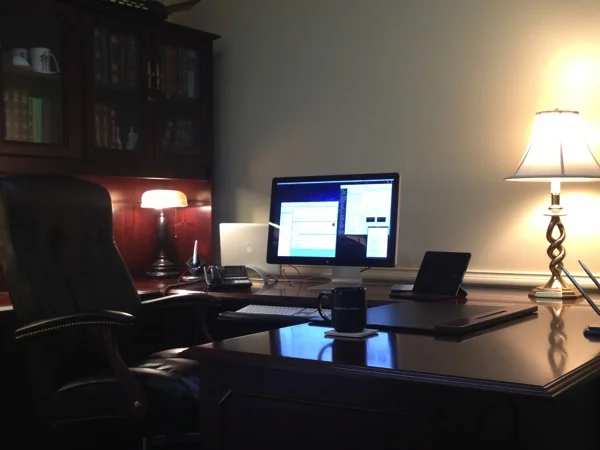
This is my office.

Paperless Office Mosbacker.JPG

Paperless Office Mosbacker.JPG

By Dr. Barrett Mosbacker

I did not clean it up for this article. I now function without paper. I’ll never go back to paper and I believe if you give this a try you won’t either. 

I am sharing with you why I went paperless and how I did it with the hope that you too will discover the increased productivity and reduced stress that I have found by changing how I do things.

To make reading easier and faster, I am writing this article as a series in three parts:

Part 1 Why I Went Paperless: There Had to Be a Better Way (Includes my goals)

Part 2 How I Went Paperless: What I Use (My hardware and software)

Part 3 Workflow: Putting It all Together (Includes workflow diagrams)

Part 1: Why I Went Paperless--There Had to Be a Better Way

I lead a large school on two campuses with 200 employees, nearly 2,000 students, 1,200 families, and with a multimillion dollar budget. I also have many complex projects in process simultaneously. For example, as I write this we are designing a new science and math building, preparing for a large capital campaign and continuing the rollout of our 1:1 computing program that we callLearning Unleashed. And of course there are the daily operational issues covering personnel, academics and curriculum, parent and student issues, athletics, facilities, admissions, finance, marketing, and a host of other day to day matters.

Adding to the mix are my family responsibilities, teaching adult Sunday School, teaching a graduate course as an adjunct professor, conference presentations, and my personal goals such as completing a book and writing this blog. I have many balls in the air, thousands of documents, and even more emails (over 1,200 work related emails per month), phone calls, meetings, and messages to manage.

I was finding it difficult to quickly locate what I needed when I needed it and even more difficult to manage the combination of paper and digital documents and communications related to projects and day-to-day matters. I knew that there had to be a way to consolidate all of this information so that I could be both more productive and less stressed. Going paperless has helped me achieve those goals.

Although being more productive and less stressed were my primary goals, there were also many secondary but important goals motivating the change. Here is my list of goals that explain why I forced myself to go paperless.

  • Increase productivity by being able to find any document or message from any device, anytime, anyplace.

  • Have one central “inbox” for everything that I receive so that I can quickly process it.

  • Become more efficient by speeding up my workflow.

  • Improve the ability to collaborate with my colleagues and associates anywhere in the world.

  • Have automatic backups of all of my documents, communications, research, and books in the event of hardware failure, fire, or natural catastrophe.

  • Be able to take notes in my many meetings and instantly have them saved and available for retrieval and sharing as needed.

  • Be able to easily convert meeting notes into tasks for myself or others.

  • Manage people and projects so that nothing falls through the cracks and to ensure that I am on top of all projects.

  • Manage my calendar and schedule so that it does not manage me.

  • Have an archive of all documents and communications for future reference should they be needed for projects or legal matters.

  • Reduce the cost of printing, filing, and mailing.

  • Eliminate filing cabinets and free up space.

  • Reduce paper to be more environmentally responsible.

  • Have a clutter free low stress work space.

In part two of this series I will explain how I went paperless and what hardware and software I use.

Google

Three Characteristics of Christian Summer Schools

Image_for_3_Characteristics_of_Summer_Schools

By Dr. Barrett Mosbacker

For a student that failed a course, summer school provides additional resources to recover the lost credits. Every year, Christian schools face the summer school challenge. Summer school programs require financial resources, additional staffing, and time. Many Christian schools opt to send their students to public or charter schools during the summer. It can be difficult to justify spending money on summer school instruction when only a few students need it.

As a Christian school, you made a promise to the parents that send you their children to not only educate them, but to also remain faithful to their Christian values. A Christian school that provides the summer school option fulfills its mission to students and families. Through online learning, Christian schools are provided the unique opportunity to overcome the challenges of a traditional, brick-and-mortar education. Consider these three characteristics of a successful Christian summer school:

1. Flexible Scheduling

For Christian families, summer is a busy time of year. Between family vacations, mission trips, summer jobs and church, a student can find it tough to focus on school. Summer is intended to be a break from the traditional classroom. Online learning puts the classroom at the student's fingertips. Day or night, weekend or overseas, online learning enables a student to recover lost credits on his or her time. For your students that spend the summer doing missionary work, online learning means they will not miss out on the valuable faith and life skills that can only be experienced in the field. This flexibility in learning extends to teachers. While many online programs provide their own instructional staff to guide students through courses, the option is also available for your staff to instruct the program. The only thing needed is internet access.

2. Comprehensive Course Catalog

Most Christian schools will only have a handful of students requiring summer school, but creating a summer program that meets diverse needs and finding teachers can be a big administrative challenge. Add to the matter that small-sized, instructor-led classes are not financially sustainable, and it is no surprise that most schools offer a limited summer program, if any at all.

Online learning alleviates these strains because its courses do not depend on size or location. It makes far fewer demands on your space and teaching resources than traditional credit recovery methods. With an online learning program with a provider like Sevenstar, students can take any course over the summer. Whether it is advancement, core, or remediation, your students can start any week of the year and certified teachers are available for every subject in our catalog.

3. A Christ-centered curriculum

Selecting an online learning partner does not mean you are giving up on your Christian values. Your school takes spiritual growth as seriously as academic development. Every online course by Sevenstar is biblically-integrated to teach a Christ-centered worldview. Since students engage with online courses without the live guidance of a teacher in a classroom, they may be more susceptible to false beliefs portrayed as fact. Therefore, biblical integration portraying Godís truth is more critical in online courses.

As you build your summer school program, consider all the options and obstacles. Online learning can be tailored to your school, your students and your financial situation.

A Christian School Educatorís Guide to Summer School

When selecting an online program for your summer school, select a partner that shares your Christian values. Online learning can be used to revive or start your summer school. Learn more about it in our new white paper, ìOnline Opportunities for Christian Schools.î Download this free resource for Christian educators using the link below.

// <![CDATA[ (function(){ var s='hubspotutk',r,c=((r=new RegExp('(^|; )'+s+'=([^;]*)').exec(document.cookie))?r[2]:''),w=window;w[s]=w[s]||c, hsjs=document.createElement("script"),el=document.getElementById("hs-cta-e2d3fe85-105c-45eb-8430-5b79bb3129fd"); hsjs.type = "text/javascript";hsjs.async = true; hsjs.src = "//cta-service-cms2.hubspot.com/cs/loader.js?pg=e2d3fe85-105c-45eb-8430-5b79bb3129fd&pid=188329&hsutk=" + encodeURIComponent(c); (document.getElementsByTagName("head")[0]||document.getElementsByTagName("body")[0]).appendChild(hsjs); try setTimeout(function() , 2500); })(); // ]]</p></div>

They're Coming! How to Deal with the End of Year Disgruntled Parent

angrywife.jpg

By Dr. Barrett Mosbacker

I am blessed. Even though we serve nearly 2,000 students representing 1,200 families, I have few disgruntled or complaining parents. This is a reflection of God’s great blessings on the school and a tribute to our fine teachers, coaches, and administrators.

Nevertheless, at the end of every school year I inevitably hear from a few parents who wait until school is out to express “a concern they have had all year.” My first question to these parents is, “why haven’t you shared your concern with the teacher this year?” The almost universal and unfounded response…”I was afraid the teacher would take it out on my child.”

In all of my years in school administration, I am unaware of any teacher ever “taking it out” on a student because the parent expressed a concern. The opposite is more likely. To avoid conflict, teachers are more apt to be overly cautious when dealing with the student of a complaining parent.

Anticipating that you may have a few of these “end of year meetings,” here are a few tips that may help you achieve a positive outcome, one that deepens the parent’s commitment to the school, lessens your stress, and is honoring to the Lord.

Pray: Pray for wisdom and a teachable spirit. Even though the parent’s approach may be wrong, there still may be information that you need to hear.

Actively Listen: Our natural tendency is to be defensive of the school and the teacher. It is far wiser to follow the biblical command to “be quick to hear, slow to speak,” (James 1:19), which was paraphrased by Steven Covey who said, “seek first to understand and then to be understood.” Click here for quick tips on how to actively listen.

Take Notes: This will help you listen actively and shows genuine interest and concern. It also promotes accuracy and provides a written record of the meeting.

Maintain the High Moral Ground and Self Control: No matter how rude, inappropriate, angry, or offensive the speaker may be, the Christian professional, controlled by the Spirit, will not respond in kind. Instead, turn the other cheek. Take the abuse. Bless those who “curse you.” And remember, “a soft answer turns away wrath but a harsh word stirs up anger.” (Prov. 15:1)

Give Assurance: Give assurance that you genuinely care (make sure you do!) and that you will prayerfully and carefully investigate the matter and will respond appropriately. Your assurance must be full of integrity. Do not say you will deal with the matter and then fail to do so.

Wait Before Indicating a Decision: Depending on the situation, it is tempting to being closure to the matter during the meeting. For example, if you prematurely conclude that the concern has no merit you may be tempted to dismiss the concern during the meeting. Or, if you believe the concern has merit, you will be tempted to explain how you will address the matter. Both responses are usually premature in this first meeting. It is far better to assure the parent that you will look into the concern, take time to investigate the facts, pray for wisdom, and then and only then decide on a course of action. Most of the time, there is more to the story than you are hearing. “The one who states his case first seems right, until the other comes and examines him.” (Prov. 18:17)

Reinforce the Matthew 18 Principle: I have found that even when parents are aware of the Matthew 18 principle, they almost always have an excuse for not following it. “I know but….” is a common response. Nevertheless, you need to inform the parent that in the future you will not meet with him or her until they have addressed the matter with the teacher. If the matter is not resolved at that level the parent must meet with the teacher’s immediate supervisor before coming to you. This needs to be said gently but clearly and then followed unless the matter is legal or immoral in nature.

Follow-up: It is very important that you do what you say and that you follow-up with the parent after you have reached a decision about your response. It is inconsiderate and unprofessional not to follow-up. This does not mean that you should disclose everything you have or will do. You must protect the privacy of students, parents, and staff but the parent who took the time to meet with you deserves to hear back from you.

By wisely, lovingly, and respectfully responding to concerns, you have the opportunity to turn a complaining parent into an appreciative one. In the long run, this is pleasing to the Lord and good for your school.

Google