How and Why I Went Paperless and How You Can Too: Part 3 Workflow--Putting it All Together

By Dr. Barrett Mosbacker

In my previous two posts in this series (Part 1: Why I went Paperless--There Had to Be a Better Way and Part 2:How I Went Paperless: What I Use) I explained why I have gone paperless and the hardware and software that I use. In this third and final article in the series I will demonstrate how I work paperlessly. I am also including diagrams to illustrate the process for emails, paper documents, and meetings. 

It is one thing to have a fleet of powerful applications at your disposal. It is quite another to develop a workflow using those applications that is easy, efficient, and dependable. The process of creating such a workflow is never done but I believe I have reached the point where I spend little time managing documents, communications, and applications and more time focused on what is important—people and projects.

Here, in brief, is a sample of how I have managed to create an almost frictionless, paperless workflow. This is obviously not comprehensive but I hope it provides an example of how to process all the information coming your way without paper.

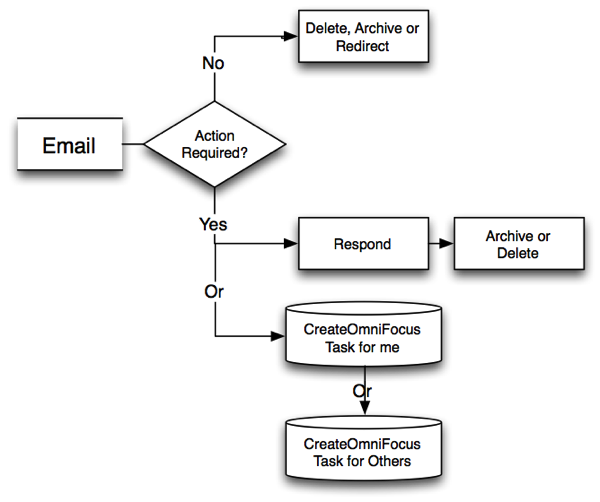
Incoming Emails

I usually deal with email in batches (it is far more efficient that way). For each email I receive, I do one of the following: 

  • Delete it 

  • Archive it 

  • Forward/Redirect to the appropriate person

  • Delegate it as a follow-up or project for someone; I forward the email to him/her and simultaneously create a follow-up task in OmniFocus directly from the email

  • Create a task or project for myself

I do not use my email inbox to track todos and follow-ups!

NewImage.png

NewImage.png

Incoming paper

When I receive paper or printed documents from others, I do one or more of the following: 

  • I ask my staff to send it to me digitally—I do not accept paper from staff. If the document is from a non-school employee, I also ask for a digital version if I deem it appropriate and polite. 

  • Trash it 

  • Scan and archive it 

  • Scan and email the document to someone else as a delegated task or project and simultaneously create a follow-up task in OmniFocus directly from the email 

  • Create a task for myself if related to a project.

NewImage.png

NewImage.png

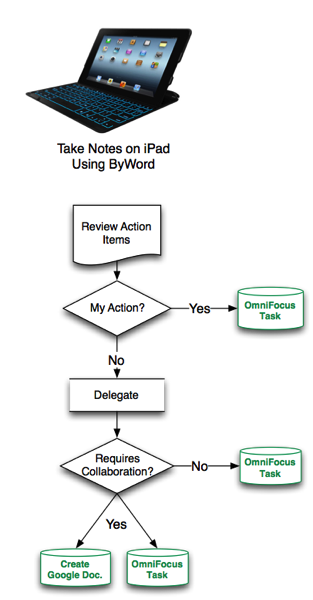
Meeting Notes

Here is how I handle meeting notes: 

  • I use ByWord to take my notes (see above for details) 

  • After the meeting, I create projects and/or tasks for others and/or myself in OmniFocus (OF) from the action items in my notes.

  • After creating the OF projects and/or tasks, I archive the notes in Evernote and link the notes to the tasks/projects in OmniFocus for reference. 

  • For a project involving more than one person, I create a collaborative document in Google Drive for those working on the project and link the Google document to the OmniFocus project.

NewImage.png

NewImage.png

OmniFocus

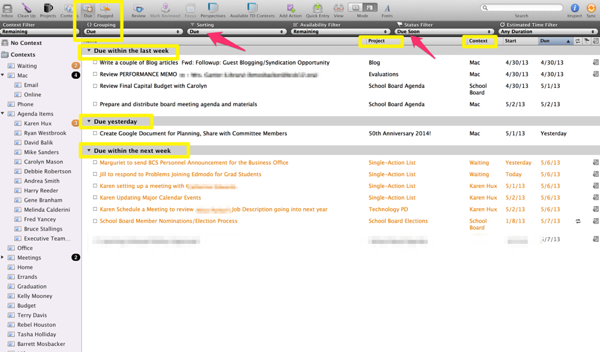
The following diagrams illustrate how the above processes look in OmniFocus:

The Due Date Perspective

NewImage.png

NewImage.png

Actions Items in Project Perspective

NewImage.png

NewImage.png

The Hard Work of Creating New Habits

I wish I could tell you this will be easy. It is not.

When first starting your journey to the paperless promise land you will have some mountains to climb and rivers to cross. You will initially increase your stress and reduce your productivity as you learn new programs and develop a new workflow. It takes time and consistency to master a new routine and form new habits. 

How long does it take to create a new habit? Accordingly to research, over two months. “We are all wired differently so how long it takes for us to form a new habit will depend on each person. The popular psuedo-myth is that a new habit forms after 21 to 28 days.  However, psychology research from the European Journal of Social Psychology seem to indicate that it takes around 66 days to truly ingrain a new habit into your brain.  At 66 days of continuous activity, that habit is going to be as much of a habit as it is ever going to be.  In other words, the action has become automatic and that habit is never going to get more habitual.”

In short, hang in there! This is not a sprint, it is a marathon.

Final Thoughts

If you find yourself struggling to manage the tsunami of information coming at you in paper and digital form, you find yourself working feverishly to juggle multiple projects and if you want to reduce stress and increase your productivity, I recommend that you consider going paperless. 

Give it try-going paperless will save you time, money, and stress once you master the tools and workflow. It will be worth the time and effort. At the end of a hard journey is a better place for your professional and personal life.  

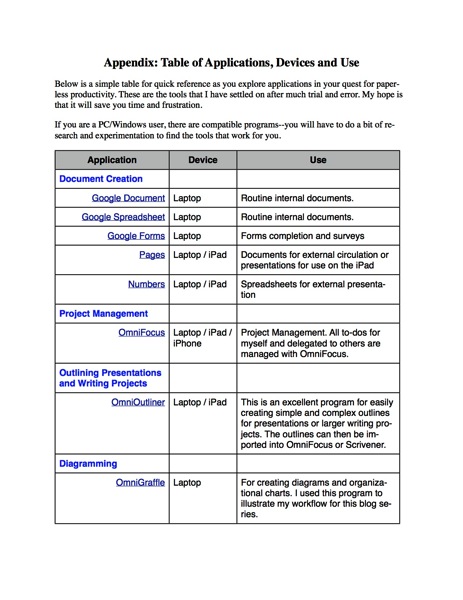
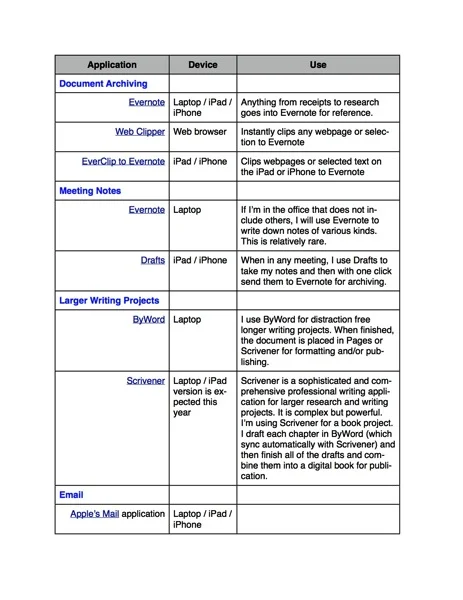
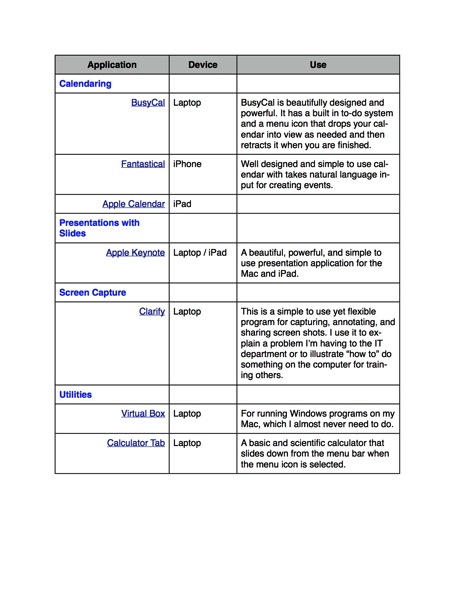
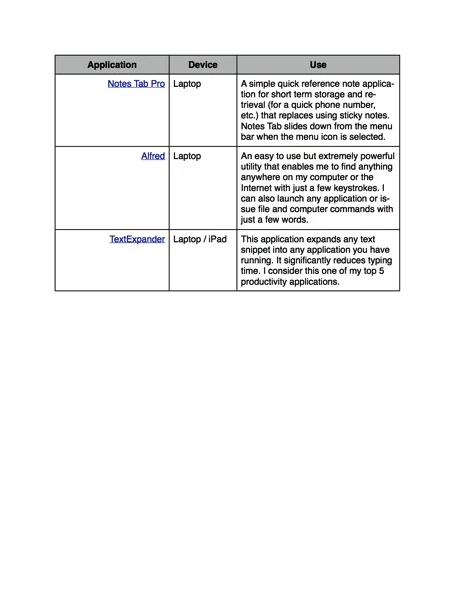
Appendix: Table of Applications, Devices and Use

NOTE: You can download this Appendix as a PDF here.

Below is a simple table for quick reference as you explore applications in your quest for paperless productivity. These are the tools that I have settled on after much trial and error. My hope is that it will save you time and frustration. 

If you are a PC/Windows user, there are compatible programs--you will have to do a bit of research and experimentation to find the tools that work for you.

Appendix Paperless Applications 1.jpg

Appendix Paperless Applications 1.jpg

Appendix Paperless Applications 2.jpg

Appendix Paperless Applications 2.jpg

Appendix Paperless Applications 3.jpg

Appendix Paperless Applications 3.jpg

Appendix Paperless Applications 4.jpg

Appendix Paperless Applications 4.jpg

Paperless Part 2: HOW I Went Paperless and What I Use

By Dr. Barrett Mosbacker

In my previous post (Part 1: Why I went Paperless--There had to be a better way), I explained what motived me to go paperless and my specific goals. I also showed you a picture of my office. This is my computer desktop; just as neat and again, I did NOT clean it up for this article. I have one folder on my desktop with two or three active documents. How can I have such a neat office and computer desktop? Because everything is digital and in its place to reduce stress and increase productivity.

Note: throughout this article you will find links to sample screen shots to illustrate how the applications are used.

My Mac Desktop.png

My Mac Desktop.png

It was not easy to change deeply ingrained habits. For my entire life I have handled paper. Over the years I developed a workflow that, well, worked-for paper. My process was familiar and comfortable. But, my workflow was developed around paper and filing cabinets, not digital communications and mobile devices.

Adding to the difficulty is the fact many people still operate in both the digital and analog worlds. I receive much unwanted paper in meetings, at conferences, and in the mail. And I receive an ever increasing avalanche of digital documents and communications.

Everything was jumbled together. Projects consisted of paper documents, digital documents, emails, and websites. Meeting notes were on legal pads with followup communications in email. Finding, producing, sharing, and consolidating information from the paper and digital worlds was becoming increasingly complex and frustrating.

The struggle was not convincing myself that I needed to go paperless. The struggle was finding the right combination of software and hardware and designing an easy to manage workflow that worked across platforms without unnecessary overlap and complexity. The struggle was also forcing myself to abandon old habits and create new ones.

After much trial and error, I can confidently declare that I am now happily and productively paperless. I can also assert that short of an apocalypse, I will never go back to using paper.

The information below is a summary of the tools I use and my workflow. I am not attempting to provide a step-by-step guide for these tools. Instead, my propose is to offer a model and way of thinking about these tools and workflow so that you can adapt them to your situation, needs, and preferences.

Hardware

For years I was a diehard PC and Windows user. My software and workflow revolved around the Wintel platform, including Microsoft Office. I have switched to Apple hardware and for most, not all, document production and communication I rely on cloud-based services such as Google. The reasons for the switch are explained below.

But—and this is important—this series of articles are not intended to promote one platform over another; one can be equally successful in moving to a paperless workflow using the Wintel platform. It is not necessary to switch to the hardware and software applications I have listed below. There are equally, and perhaps in some cases, better services and applications from other companies. The key is understanding what is needed to go paperless so that you can choose the best combination of hardware, software, and services to meet your needs. For me, after years using Windows software, I have switched to Apple and Google hardware, software, and services.

I use the following hardware: Macbook Pro Retina, iPad with a Logitech FabricSkin Bluetooth Keyboard Folio, an iPhone 5 and a Fujitsu scanner. I chose to move to Apple hardware because I became convinced that for my purposes they are more reliable and require less work to maintain. Because the hardware and software are designed by the same company they work seamlessly together. Apple support is rarely needed and is excellent in those rare instances when it is needed. Support is readily available by phone or from the local Apple store. The fact that the hardware is beautiful and pleasant to use is a bonus. I want to again emphasize, however, that for others the Wintel platform may be better.

Applications and Services

The following list is not comprehensive; it is a summary of the major applications and services I use for the majority of my work. For each application I will provide a brief reason for the selection and how it is used. Later I will share how I use the applications for my workflow.

Document Creation

Frankly, before switching to Apple and Google products I was nervous. Being a Microsoft and PC power user, I was concerned that I would lose the power and flexibility that I needed to get my work done. I was apprehensive that I may not have access to the best software and that I would have trouble integrating my workflow with colleagues and friends who were on the Wintel platform.

My fears proved to be unfounded. I didn’t lose anything—in fact, I gained a great deal. Whereas on the PC/Wintel platform I was restricted to Microsoft, Windows-based, and Google products, on the Apple platform I had access to every application made for all three platforms: Microsoft Office for the Mac, Apple’s iWorks and iLife application suites, and Google’s applications and services. I also had access to any Windows-based software I needed to run by running Virtual Box or Parallels on my Mac. In other words, I have the best of all worlds.

What surprised me the most is that I found myself not needing or wanting to use Microsoft products (except for the occasional complex Excel spreadsheet) or other Windows-based applications. I have found wonderful, and often superior, substitutes for everything I used on my PC. I have nothing against Microsoft. They sell arguably the most feature rich professional office software on the planet. If your work requires the production of complex spreadsheets and text documents, you cannot beat MS Office. I found, however, that for 95% of my work, I did not need the complex or advanced features. For those few (and they become rarer by the week) projects that require advanced features, I can fire up MS Office for the Mac and do whatever I need to do.

Google Apps (Documents, Spreadsheets, Forms, Drawings)

Google offers a full suite of products and services. You can find a comprehensive list here. Google’s applications provide the basic features most people need but they lack some advanced features. There are several advantages of using Google Apps (note: Microsoft’s Office 365 suite and SkyDrive offer similar features but I have found their collaboration capabilities to be less capable than Google’s). The apps are free or very low cost, they are always up-to-date, you do not have the overhead of maintaining and supporting the software, and most importantly for workflow, you can collaborate and share documents without the need to constantly send attachments in emails, although you can if you desire. For a good comparison between Google Apps. versus Office 365 click here. The author is a bit biased toward MS but it is a good comparison.

I use Google Apps (Documents and Spreadsheets) for creating basic documents, collaboration, and sharing. I also use them when I need to collaborate with people outside of the school. Google applications are my no frills, workhorse applications.

Apple Pages and Numbers

I use the Apple’s Pages application when I want to produce a slick, professional looking document or newsletter to send to others. I also use Apple Pages for all text-based presentations that I give. By saving the presentation as a Pages document in iCloud, I can easily access it on my iPad for my many speaking engagements. iCloud keeps both versions in sync. I may draft the document in Google Docs or ByWord on my Mac (for example, I wrote the draft of this article using ByWord: more on the reason for this below) and then pasted the content into Pages for polishing. I use the Drafts application when taking meeting notes on the iPad.

I use Numbers when I want to produce a basic but well designed spreadsheet with visually informative and appealing charts. Numbers is a good application but lacks many of the advanced features found in Excel.

Word and Excel for the Mac

Surprisingly, I no longer ever need or desire to use MS Word. I can open any Word document I receive in an email in Pages or Google Docs. I find MS Word to be a feature rich but bloated with a complex and distracting interface. Excel is unquestionably the most capable spreadsheet program you can buy. I use Excel when I receive an Excel spreadsheet from others. I also use it when I need to produce or work with a complex spreadsheet. There are times when there is no substitute for Excel. In those instances I fire up Excel for the Mac.

ByWord

Modern word processors can be distracting because they tempt one to fiddle with formatting the text. This creates distraction when you need to focus on your words--and just your words. This is why I use ByWord. It is a beautifully designed minimalist application that does two things extremely well: it enables you to write free of distraction and it syncs with your other products through iCloud and/or Dropbox. Click here for a screen shot of a draft I created for a blog article.

I have ByWord on my Mac, my iPad, and my iPhone. I can immediately begin work on a draft document whenever I have a few undistracted minutes, e.g., on the plane. Because it is minimalist in design, it also uses less battery power enabling me to work longer when I don’t have access to a power outlet.

Once the draft is finished in ByWord, I export it as an RTF or HTML file to Google or Pages for finishing. It can also be exported as a Word or PDF document.

Apple Keynote

Keynote is a fantastic application for producing compelling, fresh presentations. It is powerful and feature packed but easy to learn and use. Because it uses iCloud to sync seamlessly with the Mac and other iOS devices, I can produce a beautiful presentation and then use my iPad for the presentation. This is perfect for traveling to conferences. I produce the presentation on my Mac (you can also produce them on the iPad but the iPad version is a bit more limited), sync it to iCloud, and leave the laptop at home. At the conference, I connect my iPad to a projector and use my iPhone as the remote. Simple, light, and fast. And, if I make revisions to the presentation en route to the conference and make additional revisions after the presentation, all of the changes are synced to iCloud. When I open my Mac, the revised presentation is ready for me. This same process works with Pages and Numbers.

Keynote also syncs seamlessly with iPhoto and iMovie. Consequently, you have a simple and consistent way to add beautiful photos and compelling videos to your presentations and everything is always in sync and available across all of your devices.

Document Sharing and Archiving

Google Drive

Google Drive does three things extremely well: It is the access point for all of your Google applications and documents, it archives and saves your documents automatically, and it is the platform for collaborating on and sharing your documents. Google Drive also enables you to create, edit and save documents offline (using Google’s Chrome browser) so that you do not need an Internet connection to get work done. Once you are back online, Google Drive automatically saves and syncs your documents.

Evernote

Evernote serves a very specific and useful purpose. It is my primary repository for document archiving, retrieval, and sharing when I do not need to work on them. The distinction between Google Drive and Evernote is important. While there is overlap, e.g., both programs save, archive and sync your documents and information, Google Drive is best for “living, active” documents. Evernote is best for static reference material.

For example, any work related document that is being worked on, or that ever may need to be worked on by others, is in Google Drive. Letters, policy manuals, spreadsheets, schedules, etc., fall in this category and are on Google Drive.

Receipts, research articles, articles from the internet, User Manuals, and any other static document that is used for reference are in Evernote. I also store important personal documents in Evernote, e.g., insurance papers. That way, if there is a fire I still have access the critical documents. Although I could store these in Google Drive, Evernote is better at quickly capturing information from the web on your laptop or mobile device. It is ideal for quickly searching to find just what you need. If you have a Business Account with Evernote, you can also create a Business Library of reference material for employees, e.g., Technical How-To articles from the IT department, Employee Manuals, etc.

Communications and Calendaring

I average over 1,200 business emails each month (not counting personal emails). I also receive many phone calls and text messages. Efficiently managing and curating this flow of information requires the nimbleness of a ninja and the discipline of an Olympic athlete. It also requires the right tools.

I have tried just about everything available. I spent years on Outlook (including SharePoint) and was very comfortable with the program. It is powerful and designed for the enterprise. For the same reasons I have stated above, I decided that it was time for a change. As a school, we no longer wanted to be in the email and server business. We wanted our IT staff to focus on supporting technology integration in the classroom, not on managing email, SharePoint, servers, and antivirus software.

With our move to Google products, we also adopted Gmail, Google Calendar, Google Hangouts (for video-conferencing), Google+ (which we use for business related social media interaction), and a host of other applications that are integrated and cloud-based. As a consequences, we spend far less time (and money) managing email and calendars and we are able to integrate document creation and sharing with all of our digital communications. This enhances productivity, saves money and gives us capabilities that would otherwise be too complex and time consuming to manage.

I have vacillated between using Gmail and Google Calendar in the browser (Safari and Chrome) or using Apple’s Mail and Calendar applications (or 3rd party applications). After experimenting with many options, I have settled on Apple’s Mail for email and BusyCal for my Calendar application. While there are advantages to using the browser version of Google products, the overall hardware and application integration on the Mac and iOS devices is better when using Apple’s applications or well designed third-party applications like BusyCal. I have also found, after spending time to master it, that Apple’s Mail program is very powerful making it easy to process an overflowing inbox quickly. BusyCal is beautifully designed and powerful. It has a built in to-do system and a menu icon that drops your calendar into view as needed and then retracts it when you are finished. This saves valuable screen space and is one less window to manage.

For meetings and collaboration that do not require a face-to-face meeting but do require live communication rather than a torrent of emails, I use Google’s powerful Hangouts video-conferencing application. You can conduct a simultaneous video call with 10 people and share Google documents and/or your desktop during the call. It is a powerful program and is free. There is also an iOS application for Google Hangouts enabling you to place video calls from your iPhone or iPad when traveling.

Phone Calls

Going paperless works great for handling phone calls. My administrative assistant takes messages in a shared Google document titled “Dr. Mosbacker’s Messages.” Each morning she opens that document and enters the date. During the day she records the messages and return phone number. This document is an open tab on my browser. When I am ready to return calls, I click on the browser tab (from my Mac, iPad, or iPhone) and have all of the information I need. I can then make notes of the call in this same document and mark the call completed when I’m finished. If I ever need to find that message, person’s name, or contact information, I can search the message document from any of my devices. No paper, everything is archived and searchable. Click here for a screen shot of my messages.

Note Taking

I have a lot of meetings and I have to take a lot of notes. I want to do so in meetings without coming across like a geek. There are several challenges in taking digital meeting notes.

If you use paper, you are not paperless so you have to retype notes you need to keep (or scan them). You can’t efficiently share paper notes, and they are not immediately connected with your other documents and communications.

If you use a laptop in a professional meeting you can come across as geeky in some settings. The clacking keyboard is distracting and the screen puts a barrier between the attendees. And you are tempted to multitask (check email) rather than giving the attendees your undivided attention.

I have found the iPad to be the solution. It is light, is not distracting nor especially geeky, has long battery life and provides several note taking options not typically available on the laptop. You can type your notes using the silent virtual keyboard, you can use an iPad case with built in bluetooth keyboard (my preference), or you can handwrite your notes using a stylus with a note taking application like Notability. The best method will depend on the person and circumstances.

My objectives are to use as few applications a possible, produce digital notes, have them safely archived for future reference, and have an efficient way to delegate and keep up with tasks flowing from the meetings.

After much experimentation and no small amount of frustration, I have found a very effective and efficient system that meets my objectives. This is far simpler then it may sound but essentially I use and application called Drafts in combination with TextExpander—this program is reason enough to use a Mac!

As indicated above, I use ByWord for writing drafts of larger documents, e.g., a blog article, chapters in a book, etc. For meeting notes I use Drafts. It automatically saves your work and syncs it to your other iOS devices. It is distraction free, does not require much power, and works great on the iPad and the iPhone. When combined with TextExpender one can open Drafts and with a few quick keystrokes have TextExpander drop a meeting template into Drafts and you are ready to go.

One of Drafts most compelling features is the ability to send your meeting notes with just one click to Evernote, an email, Dropbox, OmniFocus, Twitter, Facebook, as a TextMessage and a host of other applications and services too numerous to list. You can also use “Open in” to export a draft to any other app installed that supports importing text files. Click here for an illustration.

You can type quietly on the iPad using the bluetooth keyboard case. After you have completed your meeting notes, including to-do items for yourself or others, you select each item and send it to OmniFocus (more on OmniFocus below) or Evernote (my preference because then all of my meeting notes are archived in the appropriate project notebook). For example, I have an interview template in TextExpander. Prior to the start of the interview, I open my iPad, fire up the Drafts app., and open the interview template with TextExpander. When the interview starts, I discretely take my notes in Drafts using the embedded template. After the meeting is over, with one click I send the notes to Evernote for archiving. No paper. No filing. And, I can always access these notes on any device, anytime, anywhere. I can also share my interview notes with my administrative assistant or others as needed.

Project Management

Finding THE project management tool has been my biggest challenge. For my purposes, the ideal project management application would:

  • Work on all of my devices.

  • Be powerful and flexible without being overly complicated.

  • Be developed and supported by a company that I trust and was confident would be around for a long time.

  • Integrate tightly with my other major applications (Google Docs, ByWord, Drafts, Gmail, Apple Mail, BusyCal, and Evernote).

  • Enable actions and viewing of projects, tasks, and documents by project, date, person, or context.

  • Alert me when projects were coming due, were due, or were late.

  • Give me the ability to create tasks or projects directly from emails, Drafts, or Evernote without copying and pasting.

OmniFocus does all of this and more. The capabilities will be briefly illustrated in the next article in the series but suffice it to say that OmniFocus integrates all of the above features into one powerful yet relatively simple product. That is no small feat! Click here for a sample screen shot.

In my next and final post (Part 3: Workflow--putting it all together) in this series I illustrate how I use the hardware and software to create a paperless workflow. I will also provide diagrams illustrating how the workflow works for emails, paper documents, and meetings.

Google

An Affordable Solution for AP Programs

An affordadable AP program image

By Dr. Barrett Mosbacker

Advanced Placement (AP) courses are an important factor for many parents and students who are considering enrolling in a Christian School. AP courses provide the highest achieving students the chance to study college level material. Parents and students see AP courses as an academic challenge, a way to better prepare for college, and an advantage on college applications. Yet many Christian schools trail their public school competitors in AP course offerings. Larger, well-funded public schools have the competitive edge among families with high academic standards because these schools can provide students a broad AP curriculum. How can Christian schools maintain their small class size and value-driven curriculum while competing with public and large private schools that provide a wide range of AP courses? Increasingly, Christian schools are looking online for the solution to this problem.

Online Advanced Placement courses allow Christian schools to easily expand their curriculum. Through online learning, courses can be tailored for the individual student. If you have a student interested in engineering, but your school does not provide an AP calculus course, online learning can be an efficient solution. Instead of losing that student, your school could provide a flexible and affordable online option for that student. Online learning keeps the education within your school. There  is no need to construct complicated relationships with public institutions in order to serve single student needs.

Online AP courses are the most affordable solution for Christian schools in many situations.

Who pays for it? The cost of offering AP courses can be covered through tuition and additional fees paid by families. Schools can provide access to the online course, but students and their families pay the fee. Under some arrangements, the family also pays an extra fee that can help a school pay for administrative overhead and other programs.

What about faith? Online AP courses are now offered to meet the educational goals of a Christian education. As a Christian school you strive to offer all your students a well-rounded and rigorous education. Offering an expanded range of AP courses online helps you achieve that with your most gifted students. You are helping them shine their light in the world.

How will it fit into the student's schedule? Online learning is flexible and allows schools to set their own start and end dates for an AP course. With the AP exam in May, students can start the online course as early as June to prepare for the next yearís exams. The summer months will provide your students ample time to prepare and increases their chance of securing college credit.

A Christian School Educatorís Guide to Online AP courses

AP Online courses put a Christian school on equal footing with its public counterparts without placing additional strain on the school's resources. Learn more about it in our new white paper, ìOnline Opportunities for Christian SchoolsDownload this free resource for Christian educators using the link below.

// <![CDATA[ (function(){ var s='hubspotutk',r,c=((r=new RegExp('(^|; )'+s+'=([^;]*)').exec(document.cookie))?r[2]:''),w=window;w[s]=w[s]||c, hsjs=document.createElement("script"),el=document.getElementById("hs-cta-e2d3fe85-105c-45eb-8430-5b79bb3129fd"); hsjs.type = "text/javascript";hsjs.async = true; hsjs.src = "//cta-service-cms2.hubspot.com/cs/loader.js?pg=e2d3fe85-105c-45eb-8430-5b79bb3129fd&pid=188329&hsutk=" + encodeURIComponent(c); (document.getElementsByTagName("head")[0]||document.getElementsByTagName("body")[0]).appendChild(hsjs); try setTimeout(function() , 2500); })();</p> <p>// ]]</p></div>

You Can Do This!

Girl_computer_success_good_news_winYou Can Do This!

By Zach Clark

A recent post by Barrett Mosbacker entitled, “I Just Returned From the Future” has certainly sparked some dialogue among those we’ve shared it with. Responses have ranged from frustration and despair to enthusiastic choruses of “let’s do this!”

The post certainly challenged my own thinking and I thought I would share my notes after praying and thinking about this issue of leading our Christian school leaders and teachers to understand where all this may be headed for our students.

1. It is true that great teaching isn't defined by technology.

But, teaching (great or otherwise) that fails to help students demonstrate subject mastery using contemporary technology tools will produce students who lack the skills to integrate their knowledge and wisdom into contemporary mediums. Are we successful if we graduate students who can think deeply and critically, who are well written problem-solvers but don’t have a clue how to utilize contemporary tools in relation to others?

The basics of great learning and the utilization of contemporary tools and mediums are not divorced. But, for some reason we school folks treat them like they are.

We would never teach the principles of great writing and then have students get out a stone tablet and chisel. But, nowadays, we have students still print out their papers for peer editing and teacher editing. There are few excellent companies in America today that would utilize that approach to collaborative editing and final editing. The lack of productivity would be unacceptable. We must be focused on growing top tier teachers who understand that their jobs now utilize different tools today because students will be utilizing different tools in their future.

2. Dear reader, don’t get frustrated with me, but I still hear too much talk about teaching PowerPoint, Word, Excel, video editing, and other so-called technology skills.

We should be talking instead about expecting students to communicate visually, with integrated communications tools. We should be helping students use contemporary technology to unleash the power of groups in projects, collaborate over long-distances, and dialogue with peers across the hall or across the globe. My face flushed hot with embarrassment for a teacher in a high school classroom I visited in another Christian school this week to see that students had been producing fourth grade elementary-style crafts projects to demonstrate their knowledge of biblical integration concepts. Unbelievable! Unacceptable! I know I’m not as good an educator as you, but I’ll take bets on how much better some teams from your local businesses could help students actually learn to utilize today’s technologies in how they work together, communicate, and demonstrate mastery.

When I think about the skills that some Christian school educators believe are “technology skills” I shudder. Students, get out your three-ring binder notebooks! Let’s not use Evernote or OneNote. Students write in your planners! Don’t use your iPhone calendar or Google calendars. Students take this essay question home and write me your answer! Don’t text me your answer. Don’t email me your answer. Don’t post your answer. Students, please turn in your drafts! Don’t upload them for my comments and edits. Students, please help me pass out the thirty copies I printed this morning of our sheets! Don’t ask me to post in online and review it with you on the projector screen, so you can access it from home later. Students, please add to the class discussion! Don’t upload an audio comment on what you actually think. We are dealing with a generation of teachers/leaders who think that technology is a “thing” an “add-on” rather than a change in the tools we use to actually live and work.

3. If educators keep talking to other educators about what education-technology is supposed to be, they are going to stay behind the curve.

We’ll never get there. Planning for curriculum integration of technology needs to include people [parents?] who have jobs that actually depend on their mastery of technology. I once sat in the audience while a leading curriculum and technology integration expert shared his brilliant content and wisdom. His ideas and thinking were impressive, but his personal use of technology was antiquated, unorganized, lacking mastery, and most educators wouldn’t even notice because it’s so far beyond them. He sure didn’t notice. He won’t be invited to speak at Apple, Inc. headquarters anytime soon.

What’s that ancient quote? “In the kingdom of the blind, the one-eyed man is king.”

We are talking to the wrong people. We need to keep throwing our passion and energies behind teachers who are hungry to learn about this. We are on the right track by supporting those passionate teachers who really are pushing this direction, but we need to expose them to people in our community who know how to make technology hum. We need to build strategic partnerships that support our teachers’ learning and stop expecting them to just learn from other teachers.

4. Our leaders and teachers should be modeling this.

This shouldn’t be a suggestion, but an expectation. The more we shy away from pushing this expectation, the more we perpetuate the reality that schools are one of the few places that don’t have to utilize technology effectively. Twitter and social networking are being grappled with in any industry. Also, one of the unique challenges we have is that although we do have teachers who are “early adopters” of technology, these folks aren’t always the best teachers of others because it comes so easy for them. They scare people.

A leader or teacher who struggles and conquers technology challenges is a far more effective example and teacher to other teachers. I once heard Mark Miller, Vice President for Leadership Training and Development at Chick-fil-A tell a story about Dan Cathy, their CEO building his own website back when the web was exploding. Couldn’t Mr. Cathy have easily hired someone to do that for him? Of course, but, he wanted to struggle, conquer, so he could be the example to those that would struggle after him.

5. Video technology is key, especially for leaders.

Video is such a key part of where the web is now and where it is going. Almost every teacher and certainly every leader should be pushing the envelope on this. I know many leaders are camera shy. Get over it. Push through it, work at it, practice it, keep doing it until you get better. A video message from a principal or head of school will go farther than any email ever could. If we want to personally engage today’s culture, video is a great way to do it. Our FIRST question, anytime anybody wants to communicate anything should be, “should we use video?” The answer will not always be yes, but it should be our very first communication question.

6. A practical suggestion: every teacher and leader should select a student mentor.

Each teacher and leader should seek out a student who is exceptionally gifted at some aspect of technology: web tech, mobile tech, video tech, social networking, or other and ask the student to mentor the teacher/leader on how to develop mastery of these tools. They should schedule a one to one visit with a student, at least twice a month, just to talk with the student about how they are using technology. I dare you to do this.

Here are a few questions for leaders and teachers to ponder and discuss.

Is this important? If so, please show each other your calendar so we can see how this is actually reflected in how you use your time.

How much time have you invested in the past week, month, year, decade in learning and mastering new technology?

Who are you learning from? Who challenges you on this?

I Just Returned from the Future

clip_image001

By Dr. Barrett Mosbacker

I just returned from the future.

In one of the strangest experiences I have had in a while, I lived the future as I read about it! I did not realize it for a while but then it struck me suddenly over dinner—”I am what I’m reading!”

Let me explain.

As I write this I am nearing the end of my annual Think Week (you can read details about Think Week in these two articles: How to Reduce Stress While Getting More Done; and in How To Find Time to Focus, Think, and Work). During my Think Week my primary focus is prayer and reading. On this trip I took several books with me including Humility (Andrew Murray), The Culture Code (Clotaire Rapaille), Think: The Life of the Mind and the Love of God (John Piper), Derailed(Tim Irwin), Death by Meeting (Patrick Lencioni), and Generous Justice (Tim Keller).

I also took Anywhere: How Global Connectivity is Revolutionizing the Way We Do Business (Emily Nagle Green). This is the book I was reading when I realized that I was living the future. I will summarize some of the key points of this book and their implications for our schools in a subsequent post but for now let me simply state the theme of the book;

Within the next ten years the global ubiquitous digital network will connect most of the world’s people, places, information, and things, which will fundamentally alter the way we live, work, teach, and learn.

The author, Emily Green, knows what she is talking about. She is the President and CEO of the Yankee Group—one of the world’s premier research firms on the impact of the global connectivity revolution with operations in North America, Europe, the Middle East, Africa, Latin America and Asia-Pacific.

One of the most fascinating parts of the book is her description of five consumer segments: Analogs, Technophytes, Digital Shut-ins, Outlet Jockeys, and Actualized Anywheres (AA’s). As I was enjoying my dinner and reading it suddenly dawned on me just how much I was exhibiting the characteristics of the Actualized Anywheres. The short description of AA’s is that they “bring the concept of a ubiquitously connected consumer to life.” This is when it struck me—-I was literally living the future she was describing!

Here is how I know. I wrote down how I was handling my recreational and work related tasks during Think Week. Here is a short list.

  • All of my books, newspapers, and magazines are on my iPad. I read, highlight, annotate, and share my reading content electronically.

  • I downloaded a book immediately onto my iPad based on a recommendation from the book I was reading at the time.

  • I held a video-call with my daughter and grand daughter using FaceTime on my iPhone.

  • I sent an email through Facebook to some friends and family. I accepted a connection request with a professional colleague on LinkedIn.

  • I used the Yelp application on my iPhone to find restaurants and read reviews before choosing a place to have dinner. I also wrote my own review on Yelp for the benefit of others.

  • I used my Garmin GPS to guide me to the restaurant.

  • While driving and while dinning, I used an iPhone application called SoundHound to identify and order songs to download. I liked the songs but could not remember the titles. SoundHound solved that problem.

  • I used an application called NoteSelf on my iPad to take notes using a stylus, including notes for this blog article. No paper or pen needed.

  • I used the Evernote application to send clippings from the books I was reading to my administrative assistant for her to type so that the information could be put into my Endnote program for future reference and citation.

  • I used Logos Bible Software on my computer to study and write a devotional for my faculty.

  • I used Adobe Acrobat to print the devotional as a PDF. I uploaded it to Box.net (cloud storage and collaboration) so it could be shared with our parents with a hyperlink in an email, and then I emailed it to all school staff using Outlook.

  • I used LoseIt on my iPhone to track my calories and my running.

  • One of the books I was reading referenced a 2004 NYT article on how Apple Outflanked Sony in music players (this had to do with Disruptive Innovation). I went to the NYT website and downloaded the article.

  • I am using my laptop to type this article using Live Writer, which I will then post to my blog using the same program.

Now, before you react with something like “are you crazy?!” let me highlight the key point. I am using mobile devices connected to a global digital network everywhere I go to get things done and to enhance and enrich my life. I have a seminary’s worth of books in my Logos Bible program. I have an entire library on my iPad for reading. I have a huge music library of beautiful music in my pocket. I can find and read reviews on local restaurants before deciding where to eat. And I was able to speak with AND see my granddaughter even though I am hours away in a hotel.

Some of my readers, perhaps many of them, have no intention or interest in using technology in the ways I describe above. That is okay. They are most likely Analogs. Most people are. All of us fall into one of the consumer segments that Emily Green describes in her book.

What does this have to do with our schools? Plenty! What I just described is how most of our younger parents and our students will conduct their personal and professional lives.

As school leaders we must understand that our younger parents (those born in the mid to late seventies) and certainly our current students and our future parents DO CARE. They will live and work much as I have described above. Mobile computing and connectivity will be a given—it will be woven into their lives. Their expectations are, and will increasingly be, that our classrooms and school-to-home communication reflect the realities of the new Anywhere Global Connectively.

This is a sea change. It is as evitable as the sun rising tomorrow.

Are we preparing our school infrastructures for this change? Are we preparing and training our faculty? Are we preparing our students for the new work world of tomorrow? Are we providing a biblical framework for understanding and using technology for God’s glory? Are we modeling the use of technology for our teachers and other administrators?

This is one of my favorite quotes from the book:

New things are an easy target for those who lack imagination … Years ago, no one understood why e-mail was worthwhile. Now, no one thinks twice about it—but they’re busy talking about why Twitter is stupid. Bob Metcalfe

Let’s put our sanctified imaginations to work—let’s travel to the future and then return to our schools to get ready!

How to Reduce Stress While Getting More Done

Multitask_Productive_Work_Business

By Dr. Barrett Mosbacker

Too much to do!  Too much stress!  Not enough time!  More expectations!  More demands!  More information!  More interruptions!  People, meetings, calls, emails, documents, events to attend, speaking engagements, budgets, training ….. and the list goes on!

Does that sound familiar?

In today’s world, we are constantly bombarded with information, the urgent, and ever increasing expectations. 

The weight upon us and the pace of our lives often leave us feeling dissatisfied, stressed,and sometimes burned-out.

There must be a better way!  There is!

How I work

Over the years I have worked hard at working smarter. My goal is to increaseeffectiveness and to decreasestress. I make no claim to having arrived—I haven’t. I have learned to juggle the myriad demands paced upon my professional and personal life by developing habits and leveraging technology to help me work smarter.

Below is a brief summary of how I approach my work and responsibilities. If you want more detail or have a question, simply leave a comment and I will respond with more information.

clip_image002

Calendar & Meeting Management

Time of Arrival at the Office

I am usually in my office by 6:00-6:15 AM, sometimes earlier—depending on how often I hit “snooze” on my alarm! This enables me to beat the rush hour traffic, making me less stressed and more efficient. I’m also in a better mood for devotions.

Prayer and Devotions

I start the day with prayer and Bible study. My devotional time is blocked and locked on my calendar. It is not always easy to begin the day with prayer and Bible study. Some days I don’t feel particularly spiritual and don’t feel like praying or reading my Bible. I am tempted to start reading and responding to email.

It doesn’t matter how I feel. I pray and study my Bible anyway. My soul is almost always warmed and enlivened through prayer and Bible study (coffee also helps!) but not always. It does not matter—I pray and study anyway. God never told me to feel like praying or to feel like reading my Bible—he simply commands me to do so.

My prayer is that the “Lord will bless the work of my hands, that he will grant wisdom, that as I plan my way he will direct my steps, and that he will grant me holy rather than selfish ambitions in my work.”

I am currently reading through the Bible using the ESV on the iPad. I leave the computer off and go to another chair in my office to pray and read. This is called “fleeing temptation.” J

Review of Next Action Items and Upcoming Appointments

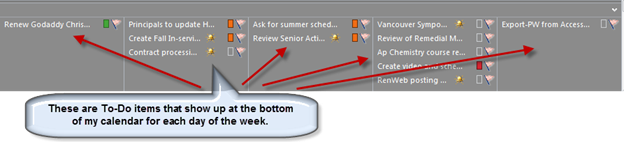
After devotions, I have 30 minutes set aside to review reports, NEXT ACTION items, the day’s appointments, etc. I am able to do this easily and effectively because I use the Task function in Outlook to manage my To Do list and projects. I am able to see at a glance what is due today and for the week.

clip_image004

clip_image006

Meetings

Time is scheduled before and after every meeting for prep, travel, and follow-up. This allows me time to walk into a meeting well prepared with documents gathered. It also ensures that I setup follow-up meetings, write a memo or email, etc., immediately after the meeting so that “balls are not dropped.”

clip_image007

When someone other than a parent or staff member stops by and asks “do you have a minute,” usually a salesperson, if I’m not in a meeting or leaving for one, I will give him or her a little time in order to give a good testimony of the gospel. However, if this is an unscheduled drop-in, I start by meeting him or her at the door. I remain standing. This significantly shortens the unplanned meeting. I will invite the unscheduled guest to sit IF I believe the issue has the potential to benefit the school and if I have time. Otherwise, the meeting will end as a standup meeting or my assistant will schedule a follow-up meeting. In other words, in so far as possible and polite, I attempt to control my time rather than having someone else control it.

I also use lunch for meetings. I have to eat anyway so I might as well make it productive. Very seldom do I eat without meeting with someone.

I normally leave the office at 4:00. I go home and run four miles on the treadmill while catching up on the news—I accomplish two things at once! I shower and eat and then go to any evening meetings or events that I may have.

I am almost always in bed by 10:00 and up at 5:00 the next morning.

Friday mornings are blocked on my calendar for project work—off campus to minimize interruptions. This is an important time each week. I am able to focus on those BIG rocks that can be crowded out by the urgent.

Phone Calls

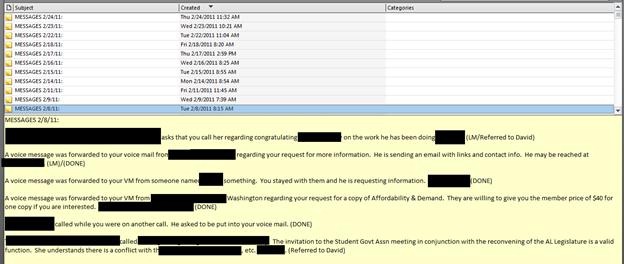
I have the blessing of having a wonderful administrative assistant. I have instructed her to log all phone calls into Outlook’s Notes function. This provides a permanent record of every call. After returning the calls I make quick notes on each log. This ensures that I return calls in a timely fashion and I have a record of my response—which can be as easy as “Returned, Left Message, Referred, etc.

clip_image009

I also return calls in the car using hands-free voice activated dialing. NEVER dial when driving. (That sentence will make my attorney happy!)

Managing Email and Information

email communication overwhelmed

clip_image010

Email management is a challenge—but not impossible! Rather than outline strategies for managing email in this article, I have created a PowerPoint Presentation that you may find useful. At the end of the presentation are links to short Microsoft training videos.

Click HERE to download the PowerPoint Presentation. You may share the PPT with whomever you wish; I only ask that you refer them to this blog.

Think Week

clip_image011

My Think Week is one of the most important practices that I have developed over the years. As I write this, I am preparing to leave for my Think Week. I will be reading 10 books and a stack of research documents—all on my iPad. For more information on Think Week see my previous post: How To Find Time to Focus, Think, and Work.

I got the idea for Think Week from articles I read about Bill Gates and his Think Week. Here are two articles that may interest you: Article 1: Bill Gates in Secret Hideaway, Article 2: Bill Gates Think Week.

Tools I Use

  • I strive to be as paperless as possible. To the extent that I have everything in digital form (which is almost everything) I can have my documents with me anytime and anywhere. They are also searchable and shareable. This is far more productive than keeping up with paper, legal pads, notebooks, post-it notes, etc.

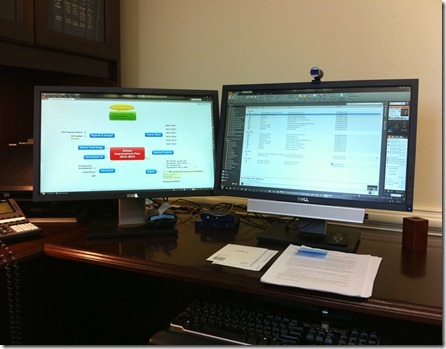
  • I use a Dell laptop on a docking station with two monitors. On the left is my project management/brainstorming software—Mindmanager from Mindjet. The center monitor is used for Outlook and other Microsoft products (Word, etc.)

clip_image012

  • I make extensive use of video-conferencing. I use ooVoo-think Skype on Steroids! Video-conferencing makes phone calls far more personal, there is less temptation to “multitask” while on a phone call, and you can share your desktop and/or files while on the call. Video-conferencing also reduces the number of emails I must process.

· I use the iPad for virtually all of my reading and note taking. There is a very effective and powerful note taking application called “Note Taker HD.” Used with a stylus it is as effective as a legal pad but with the advantage that all of your notes are in one location, searchable, and shareable.

Software I Most Frequently Use

  • Microsoft’s Office 2010

  • Docs-to-Go on my laptop and iPad. This program syncs all of my laptop documents to my iPad so that I have everything with me at all times. Docs-to-Go also enables me to read, create, and edit Microsoft documents-Word, Excel, and PowerPoint.

  • Mindmanager with a Catalyst subscription—for project management, brainstorming, and collaboration. The program tightly integrates with Outlook and Microsoft Office products making it an extremely effective task and project management tool.

  • The new I.E. 9 browser and Google's Chrome. They are fast, secure, full-featured, and customizable.

  • Note Taker HD—replaces a legal pad.

  • Logos Bible Study software—on my laptop and iPad. For in-depth Bible study.

  • Kindle software on the laptop, iPad, and iPhone—I carry my library in my pocket.

  • Skydrive—for online document storage, creation, and collaboration. Skydrive and MS Webapps integrate seamlessly with Microsoft Office.

  • ooVoo for video-conferencing.

  • Twitter—for keeping up with the news.

  • Jott—for leaving myself reminders when I’m in the car.

  • Adobe Acrobat Pro—for PDF creation and electronic forms completion and signing.

  • Loseit-see below.

Personal Health

clip_image014

Staying fit is critical to reducing stress and being efficient and effective. Although it gets tiresome, I count calories (I use a software program called LoseIt on my iPhone) and I track my exercise using the same program.

I run four miles a day six days a week (Sunday off) unless providentially hindered. I maintain my weight within the “ideal range,” for my height and age.

I do NOT like running and I do not like counting calories—but—doing so makes a big difference in how well I sleep at night and how much energy I have each day.

Because I do not like running, I do not sit down when I get home—not even for a minute!! I walk immediately to the closet and change into my exercise cloths and mount the treadmill.

Life is hectic and our jobs are demanding. Learning to thrive rather than merely survive as a leader is a challenge. It can be done. Attention to one’s spiritual and physical health, establishing good practices and habits, and making appropriate use of technology can all, when used in combination, reduce stress while we strive to accomplish more for God’s glory.

Should Teachers Text, Facebook, or Twitter Students?

Texting_Ariana_Cell_Phone_text

By Dr. Barrett Mosbacker

Do you think electronic communication between teachers and students should be forbidden or restricted? What are the benefits and risks of texting with students? How have you used texting and/or social networking as an educational tool.

What about Facebook?  Twitter?

Share your thoughts with the hundreds of educators who read this blog.

Fast Facts About Online Learning: I Do The Research So You Don't Have To

By Dr. Barrett Mosbacker

I have been reviewing a substantial body of research and attending national conferences as I formulate the theological, technological, financial, and marketing framework for a distance learning program at Briarwood Christian School.

I like to share the fruits of my labor with my readers.  Here is a summary of some of the research on distance learning that you may useful.

It has been said that “a picture is worth a thousand words.”  With that in mind, I am providing several charts that provide a useful snapshot of the status of distance learning in the U.S.

This is important information because as I noted in previous articles (They Are Coming After Your Students and Said So! and Can We Keep Up with the Competition?) it is imperative that we work through the theological and pedagogical implications of distance learning as we position our schools for the realities of a dramatically changing educational landscape.

The Evergreen Education Group is the source (Evergreen Education Group. (2009). of Keeping Pace with K-12 Online Learning: An Annual Review of State-Level Policy and Practice. Evergreen, CO: Evergreen Education Group.) from which the graphics below are taken.

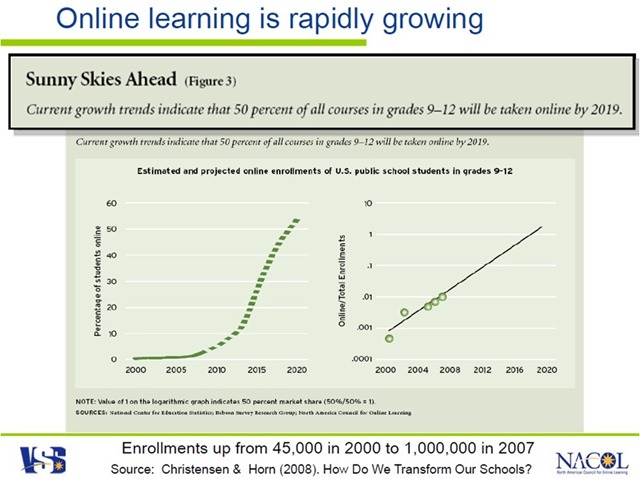
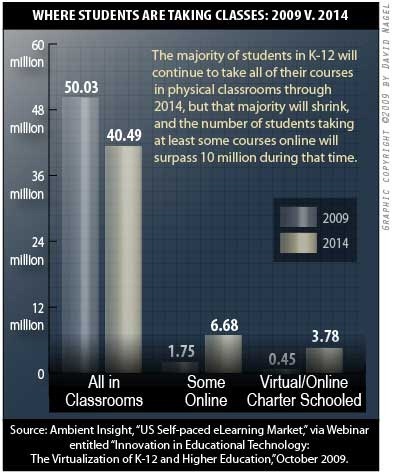
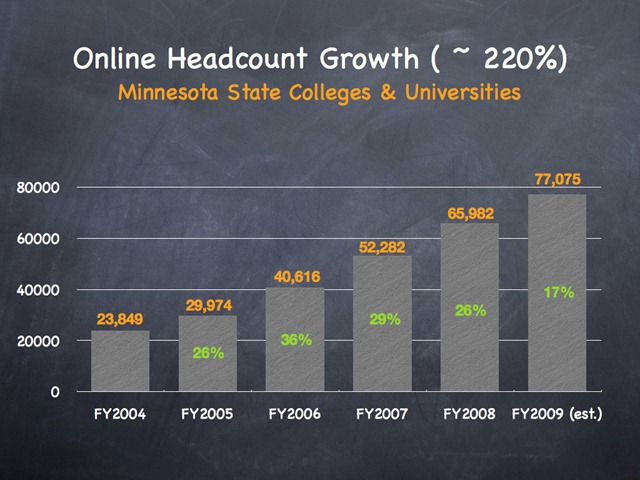
Growth of online learning charts

Where Students are Taking Online Classes

online education growth chart

Research, Trends and Statistics

K-12 Online Learning and Virtual Schools: Expanding Options

  • K-12 online learning is a new field consisting of an estimated $300 million market, which is growing at an estimated annual pace of 30% annually.

  • 45 of the 50 states, plus Washington D.C., have a state virtual school or online initiative, full-time online schools, or both.i

  • 24 states, as well as Washington, DC, have statewide full-time online schools.ii

  • Many virtual schools show annual growth rates between 20 and 45%.ii

  • 35 states have state virtual schools or state-led online programs. iii

  • As of January 2007, there were 173 virtual charter schools serving 92,235 students in 18 states.iv

  • 57% of public secondary schools in the U.S. provide access to students for online learning.v

  • 72% of school districts with distance education programs planned to expand online offerings in the coming year.vi

  • 14.2 million computers were available for classroom use in the nation’s schools as of the 2005-2006 school year. That works out to one computer for every four students.vii

Online learning in K-12 schools is growing explosively

  • There are an estimated 320,000 course enrollments in state virtual schools and 75,00 full-time students in full-time online schools in the U.S.ii

  • In 2000, there were 40,000-50,000 enrollments in K-12 online education.viii

  • Eduventures estimated 300,000 students participated in virtual learning in the 2002-2003 school year in the United States.ix

  • Alberta Online Consortium in Canada reported 4,766 enrollments in 2002-2003. In 2002-2003, NCES reported 328,000 distance education enrollments in K-12 public school districts.x

  • In 2008, Sloan Consortium reports that there are approximately 4 million college students are currently enrolled in fully online courses.xi

  • In 2006, the Sloan Consortium reported 700,000 enrollments in K-12 online learning. to read: According to the Sloan Consortium, the overall number of K-12 students engaged in online courses in 2007-2008, is estimated at 1,030,000. This represents a 47% increase since 2005-2006.xii

  • In 2006, Sloan Consortium reported there were 3.2 million postsecondary students in the United States that took at least one online course; this represents a 25% increase over the previous year.

  • In April 2006, Michigan became the 1 st state to require online learning for high school graduation. In 2008, Alabama added a high school graduation distance/online learning requirement ,as well. 80% of K-12 school districts cited “the course was otherwise unavailable” as the number one reason for offering courses at a distance. xiii

  • According to the 2009 Sloan Consortium report, K-12 school district administrators cited “offering courses not otherwise available at the school,” “meeting the needs of specific groups of students,” and “offering Advanced Placement or college-level courses” as the top three reasons they perceive online and blended courses to be important.xiv

  • Enrollment province-wide in British Columbia climbed from 17,000 students in 2006 to 33,000 students in 2007, according to Canada’s Ministry of Education statistics

  • When considering online education for students in rural communities who have either “access to only a limited number of course offerings in their public schools” or advanced students interested in taking courses for college credit, the public expresses considerable support. In these two instances, over 60 percent of respondents support public funding for online education.xv

Research Reports “As Good or Better”: Effective

According to NCREL Synthesis of New Research on K-12 Online Learning: xvi

  • Online Learning Expands Options: “The first impetus to the growth of K-12 distance education was an interest in expanding educational options and providing equal opportunities for all learners.” (p.7)

  • Online Learning Is Rapidly Growing: “Recent surveys show that K-12 online learning is a rapidly growing phenomenon.” (p.4)

  • Online Learning Is Effective: “Equal or Better”: “One conclusion seems clear: On average, students seem to perform equally well or better academically in online learning.” (p. 17)

  • Online Learning Training Improves Teaching: Teachers who teach online reported positive improvements in face-to-face, too. “Of those who reported teaching face-to-face while teaching online or subsequently, three in four reported a positive impact on their face-to-face teaching.” (p. 25)

Today’s Students

  • The Pew Internet Project reports “the Internet is an important element in the overall educational experience of many teenagers”:xvii

  • 87% of all youth between the ages of 12 and 17 use the Internet (21 million people).

  • 86% percent of teens, 88% of online teens, and 80% of all parents believe that the Internet helps teenagers to do better in school.

  • 85% of 17 year olds have gone online to get information about a college, university, or other school they were thinking about attending.

High School Reform and Redesign

  • Data suggest that in about six years 10 percent of all courses will be computer-based, and by 2019 about 50 percent of courses will be delivered online.xxi

  • 90% of the fastest growing jobs in the economy require a college degree.xxii

  • Over 40% of our nation’s high schools do not offer any AP courses. Many of these schools serve predominantly low-income and minority students.xxii

  • Virtual schools and online programs provide AP courses.

  • While only 44% of U.S. high school students studied a foreign language in 2002, learning a second or third foreign language is compulsory for students in the European Union and elsewhere.xxii

  • Virtual schools offer foreign language courses online that allow interactive communication and collaboration with students and teachers across state and national boundaries for 21st century learning.

  • 52% of middle school and 15% of high school mathematics teachers did not have a major or minor in mathematics and 40% of middle school and 11% of high school science teachers did not have a major or minor in science.xxiii

  • Virtual schools and online programs provide a range of courses such as science, math, foreign languages, electives and remedial courses with highly qualified teachers.

  • According to the Manhattan Institute, 70% of all students in public high schools graduate, and only 32% of all students leave high school qualified to attend four-year colleges.xiv

  • The high school graduation rate in the United States is 70%. High school drop-out rates in urban areas average 50%.xxv

  • Only 51% of all black students and 52% of all Hispanic students graduate, and only 20% of all black students and 16% of all Hispanic students leave high school college-ready.

  • According to recent research from the Silent Epidemic study, 47% said a major reason for dropping out was that “classes were not interesting” and they were “bored”; 88% of drop outs had passing grades.xxvi

  • The National Education Technology Plan recommended that every student have access to e-learning opportunities and every teacher have access to e-learning training.xxvii

  • Virtual schools and online learning can help provide equal access to rigorous courses for all students, reducing inequities that exist across the educational system.

  • Today 6,000 talented young people will drop out of school. xxvii

  • Today only 11 states require credits in a foreign language for students to graduate.xxvii

  • Today two-thirds of high school students will be bored in at least one class.xxvi

  • Today African American students are 14 percent of those in school, but only 7 percent of those taking Advanced Placement exams.xxvii

  • Today 15 million students who need mentors do not have them. Xxviii

  • 69 percent of the public say that they “would be willing to have a child [of theirs] go through high school taking some academic courses over the Internet.xxix

References

iNACOL. (2009). Fast facts about online learning. Washington DC: International Association for K-12 Online Learning (iNACOL).

i Keeping Pace with K-12 Online Learning 2009, Evergreen Consulting; www.KPK12.com

ii Keeping Pace with K-12 Online Learning 2009, Evergreen Consulting; www.KPK12.com

iii Keeping Pace with K-12 Online Learning 2009, Evergreen Consulting; www.KPK12.com

iv Center for Education Reform. (Note: There are 173 virtual charter schools with 92,235 students, up from 147 schools serving 65,354 students in 18 states in 2005-2006; 86 such schools with 31,000 students in 13 states in 2004-05; 60 schools in 13 states in 2002-03).

v Internet Access in U.S. Public Schools and Classrooms: 1994–2005, 2007. U.S. Department of Education. Washington, DC: National Center for Education Statistics. www.nces.gov.

vi Distance Education in Elementary and Secondary Public School Districts, 2005, U.S. Department of Education National Center for Educational Statistics. www.nces.ed.gov

vii Upcoming Statistical Abstract of the United States: 2009, Table 252 http://www.census.gov/compendia/statab/

viii Virtual Schools, 2001, Tom Clark/WestEd.

ix In 2002-2003, 4,766 students in Alberta, Canada were enrolled in online learning programs; up 1,000 from the previous year’s 3,810 students.

x Distance Education in Elementary and Secondary Public School Districts, 2005, U.S. Department of Education National Center for Educational Statistics. www.nces.ed.gov.

xi Staying the Course: Online Education in the United States, The Sloan Consortium, 2008. http://www.sloanc.org/publications/survey/pdf/staying_the_course.pdf

xii K–12 Online Learning: A 2008 Follow-up of the Survey of U.S. School District Administrators, Sloan Consortium, January 2009, http://www.sloan-c.org/publications/survey/pdf/k-12_online_learning_2008.pdf.

xiii Distance Education in Elementary and Secondary Public School Districts, 2005, U.S. Department of Education National Center for Educational Statistics. www.nces.ed.gov.

xiv K–12 Online Learning: A 2008 Follow-up of the Survey of U.S. School District Administrators, Sloan Consortium, January 2009, http://www.sloan-c.org/publications/survey/pdf/k-12_online_learning_2008.pdf.

xv “The 2008 Education Next-PEPG Survey of Public Opinion,” Fall 2008, (vol. 8, no. 4), http://www.hoover.org/publications/ednext/26380034.html.

xvi NCREL Synthesis of New Research on K-12 Online Learning, 2005, North Central Regional Education Laboratory/Learning Point Associates. www.ncrel.org/tech/synthesis/.

xvii The Internet at School, 2005, Pew Internet Study. www.pewinternet.org.

xviii Rates of Computer and Internet Use by Children in Nursery School and Students in Kindergarten Through Twelfth Grade, 2003, National Center for Educational Statistics, U.S. Department of Education. http://nces.ed.gov/programs/quarterly/vol_7/1_2/4_4.asp.

xix Internet Access in U.S. Public Schools and Classrooms: 1994–2005, 2007. U.S. Department of Education. Washington, DC: National Center for Education Statistics. www.nces.gov.

xx Internet Access in U.S. Public Schools and Classrooms: 1994–2005, 2007. U.S. Department of Education. Washington, DC: National Center for Education Statistics. www.nces.gov.

xxi How Do We Transform Our Schools?, Education Next, Christensen, Clayton M. and Michael B. Horn, Summer 2008 (vol. 8, no. 3), http://www.hoover.org/publications/ednext/18575969.html.

xxii Expanding the Advanced Placement Incentive Program, U.S. Department of Education. http://www.ed.gov/about/inits/ed/competitiveness/expanding-apip.html.

xxiii Schools and Staffing Survey: 1999-2000, U.S. Department of Education. www.ed.gov.

xxiv Public High School Graduation and College Readiness Rates in the United States, 2003, from the Manhattan Institute. www.manhattan-institute.org.

xxv Public High School Graduation and College Readiness Rates in the United States, 2003, from the Manhattan Institute. www.manhattan-institute.org.

xxvi The Silent Epidemic: Perspectives on High School Dropouts, 2006, Bill and Melinda Gates Foundation. www.gatesfoundation.org.

xxvii Toward A New Golden Age In American Education: How the Internet, the Law and Today’s Students Are Revolutionizing Expectations: National Education Technology Plan, 2005, U.S. Department of Education Office of Educational Technology.

xxviii The Association for Supervision and Curriculum Development: The Whole Child. www.wholechildeducation.org.

xxix “The 2008 Education Next-PEPG Survey of Public Opinion,” Fall 2008, (vol. 8, no. 4), http://www.hoover.org/publications/.

How and Why to Create a Word Cloud to Get Your Message Across

By Dr. Barrett Mosbacker

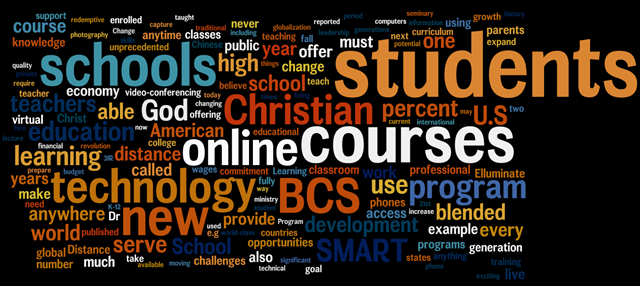
I may be way behind but I just recently discovered that I could create a word cloud to present a visual representation of written material.  Having just written an important memo to my staff on our new distance learning initiative, I decided to create a word cloud using the text of my memo.  Below is the result.

image

The size of a word in the visualization is proportional to the number of times the word appears in my memo.  What is interesting, and encouraging, is that “Student” is the most prominent word, reflecting the focus on the benefits to students of our new distance learning initiative.  

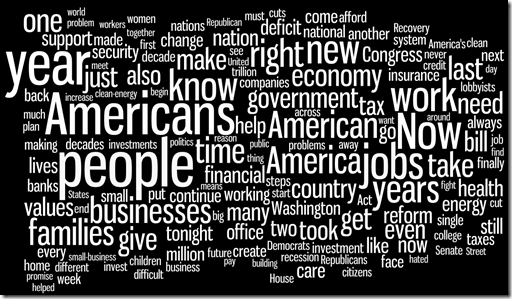
I used Wordle to create my word cloud.  Wordle has a public gallery of word clouds.  Here is one I created from President Obama’s State of the Union speech.

image

Here is a word cloud I created from President George Washington’s first Stat of the Union speech.

image

Finally, here is a word cloud I created from President Franklin Roosevelt's 1944 State of the Union speech.

image

Beyond being merely fun and interesting, which it is, it also has real educational value.  For example, as illustrated above, a history teacher could use word clouds to compare historical documents as a way of illustrating the primary focus of concern.  A literature teacher could compare two pieces of literature dealing with similar themes.  Or, you could analyze your presentations to determine if the word frequency matches your intended emphasis.  Obviously, frequency is but one indicator, but useful.

image

Whereas Wordle provides the flexibility to change the layout, font, color, etc., of your cloud, tagcrowd provides more options in handling the actual text, e.g., the number of words displayed, word grouping (similar words), etc.  This can be useful because you can group words that should be combined to better illustrate frequency, e.g., learned, learns, learning=learning.  The word cloud below was created from my distance learning memo using tagcrowd.

Helpful Tips

It is best to paste your text in the Wordle or Tagcrowd textbox in unformatted text format without paragraph marks, bullet points, etc.  The easiest way to do this in MS Word is to copy your text and then paste in in a new Word document as unformatted text.

image

image

Then,  using the Fine/Replace tool in Word, replace paragraph marks, etc, with a space.

image

Copy and paste the resulting text in Wordle or Tagcrowd to create your new word cloud.

Goodbye to Discs and Pages?

By Dr. Barrett Mosbacker

This article, although related specifically to Apple and Amazon, the larger story is the fast movement to digital content for books/textbooks. 

Amazon vs. Apple: Battle of the books

With its new iPad, Apple is taking aim at Amazon's core business and its Kindle book reader. Can the 'e-tail' pioneer keep up as books, music and movies go all-download?

By Michael Brush

Amazon.com (AMZN, news, msgs) has come out on top in the digital revolution that's moving sales of books -- as well as compact discs, DVDs and lots of other products -- online.

But there's a second digital uprising afoot, and some experts think Amazon won't fare as well -- and could lose a sizable chunk of its core bookselling business.

Any Amazon losses would likely be gains for Apple (AAPL, news, msgs), which could do to its "e-tail" rival what Amazon has been doing to brick-and-mortar competitors.Apple's chief weapon in this battle of online giants -- the iPad -- will be rolled out April 3, with preorders starting March 12. Among the many things people will be able to do with these flat touch-screen computers: download and read digital books from Apple's new iBookstore.

Amazon has its own successful book reader, the Kindle. But Apple dominates in music downloads, so there's good reason to think it will take a big share of the market for downloadable books. "In music, Apple is the dominant player. Now Apple wants to do the same in books," says Jeffrey Liebenson an attorney with Herrick, Feinstein who was involved in some of the early music industry negotiations with Apple. And the iPad threat is part of a bigger-picture "digital transition" risk to Amazon that has led many investors to head for the exits.

The worry? Books are joining music in a broad shift to entertainment via digital download, and that's a game Apple tends to win.

Goodbye discs and pages

Think how this second digital revolution has changed the way we get entertainment:

  • When was the last time you bought a CD? Sales of CDs declined to 301 million last year from 712 million in their peak year of 2001, according to Nielsen SoundScan. Instead, people download music -- and Apple, with its iTunes store, dominates with a 70% market share. Amazon has 8% of the music sales market.

  • The same thing is happening to DVD sales. Video stores such as Blockbuster (BBI, news, msgs) are already hurting. Consumers will soon wonder why they should buy a DVD anywhere when they can get a movie online -- instantly.

E-Book price wars

Amazon hasn't ignored these changes. You can download music at the online retailer -- and from many other places, of course -- but Apple simply rules this game.

You can also get movies over the Internet from Amazon. Here Apple isn't dominant, but the field is crowded with strong rivals: cable companies, Netflix (NFLX, news, msgs), Hulu and Vudu, which was recently purchased by Wal-Mart Stores (WMT, news, msgs).

Books are next, and Amazon is certainly a major player in the digital book market with the Kindle. But imagine that Apple does to the book market what it's done in music. How much will be left for Amazon or anyone else?

The risk to Amazon's business is real, and it is one of the main reasons Credit Suisse analyst Spencer Wang is telling investors to avoid buying Amazon stock now. He has a "hold" rating on the online retailer and a 12-month price target of $130 a share, around where the stock sells today.

Because of these worries, investors sold out of Amazon stock earlier this year when it became clear Apple was entering the e-book market, analysts say. The stock is down from a 52-week-high at $146, though, like the market as a whole, it's way up from its lows.

Among those selling has been Amazon founder and CEO Jeff Bezos. In February, he sold 2 million shares of Amazon stock at prices between $116 and $120, according to Thomson Reuters. He sold 7 million shares in 2008-09, after selling no stock at all during 2005-07.

The strong side of Amazon

Mind you, this is a battle of giants.

Amazon's stock is up 50% since I wrote in August 2008 about a different battle for online sales ("How Amazon is beating up eBay"). The Standard & Poor's 500 Index ($INX) is down more than 10% from where it was then, and eBay (EBAY, news, msgs) is down slightly.

Amazon revenue grew an impressive 37% in the fourth quarter of 2009. It owns 22% of the North American book market, according to a Credit Suisse estimate. And it can continue to grow by doing what it does best: taking market share from brick-and-mortar retailers.

It sold an estimated 2 million Kindle book readers last year, and 3.1 million are expected to be sold this year, according to estimates by Barclays Capital analyst Douglas Anmuth. Amazon's stated goal of having every book ever printed in any language available on Kindle in less than 60 seconds is a bold one -- and however realistic, it means Kindle owners should eventually be able to get virtually any book they want.

The Apple advantages

Apple, though, is a fierce competitor, which is what makes the battle intriguing. And it has two big advantages as it goes after book sales.

Advantage No. 1: Apple has eager allies in the publishers.

To promote Kindle, Amazon has been offering great deals on new and best-selling e-books, a 55% discount off a typical $22 list price to $9.99. It's selling many e-books at a loss, says Wang, the Credit Suisse analyst.

This annoys publishers. They think Amazon has too much clout in the book business, and they don't want to see that extended to e-books. And they worry that a $10 price will "cheapen" books, training consumers to always expect low prices.

Enter Apple. It has offered publishers better prices than Amazon asks -- as long as the publishers make other vendors (i.e., Amazon) raise the retail price on best-selling e-books to $12.99 to $14.99. Most of the major publishers have signed on. If the alliance sticks, it will hurt Amazon's strategy for taking market share and fueling Kindle growth.

"All the publishers I talk with are hoping the iPad will live up to the hope," says Todd Eckler, the vice president for print and publishing at North Plains, which sells software to help providers put their content online.

Advantage No. 2: Apple is better than almost anyone at making gadgets.

This is key, because the gadgets can be crucial in determining which company eventually controls the content ecosystem, including the all-important formats that can be used to lock out competitors.

One of the main reasons Apple dominates music is the popularity of its iPod players and its music-playing iPhone. Lots of companies make music players, but Apple dominates so thoroughly that "iPod" is nearly a generic term.

Though we won't know for sure until it hits the market, with its smooth interface and bright color screen, the iPad seems sure to be a comfortable way to read books, believes Scott Testa, a professor of business administration at Cabrini College in the Philadelphia area and an avid Kindle user. "The iPad is going to blow the Kindle away as far as ease of use and the quality of the screen," he says.

Amazon's gadget will have the price advantage. The Kindle starts at $250 and is likely to get cheaper soon. Apple's iPad will start at $500; if Apple wins, it will likely be because the iPad does much more.

Though the iPad's features and processing power will be overkill for the simple act of reading a book, they're likely to contribute to an evolution in what constitutes a book that could move that market toward Apple.

A next-generation iPad book could easily include video on "the making of the book" as with DVDs, an author interview or music -- features that will make book reading a richer experience, says Eckler, of North Plains, which sells software that helps publishers do these things.

Beyond books, consider that the many potential customers who already have deep libraries of iTunes music and video can play those on their iPad. They don't work on a Kindle or on other manufacturer's devices. If customers buy only one device, that's an incentive to go with the iPad.

The Google wild card
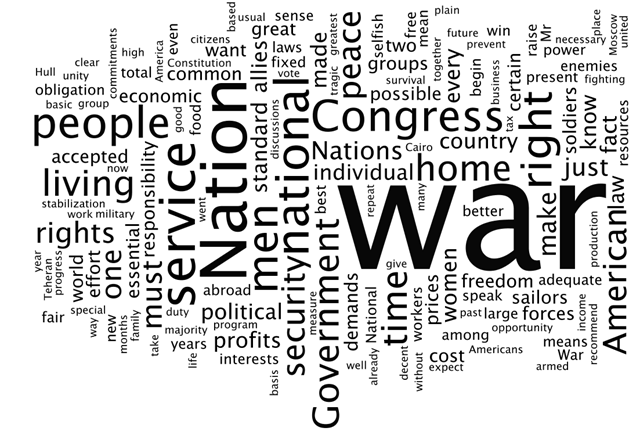
Amazon also has Google (GOOG, news, msgs) to worry about. The latter is scanning as many books as possible to build up the world's biggest digital book database.
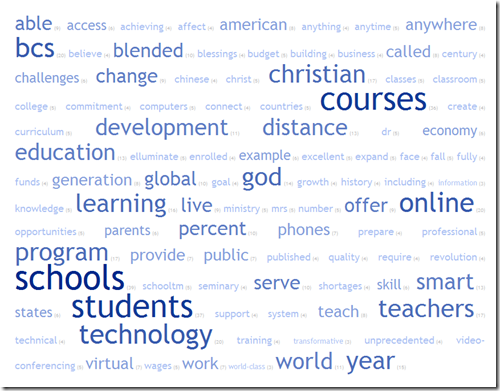
We're still not sure how Google plans to make money off this, but one approach is obvious: Google will likely discount books (or give away books in the public domain, without copyright limits, for free), and make up the difference by charging sponsors for ad words, just as it does for search. Plus industry experts believe that like Amazon and Apple, Google will roll out its own book reader at some point soon.
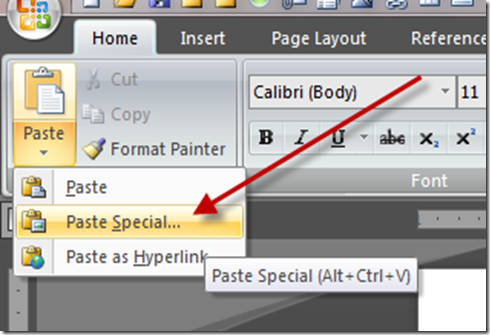
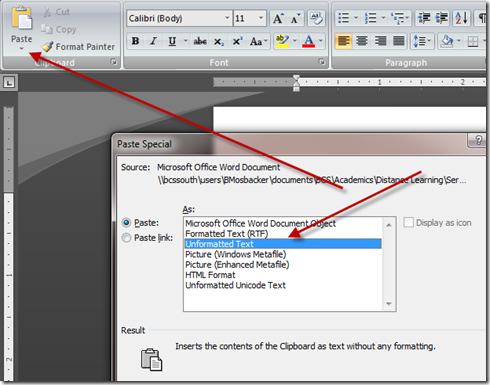
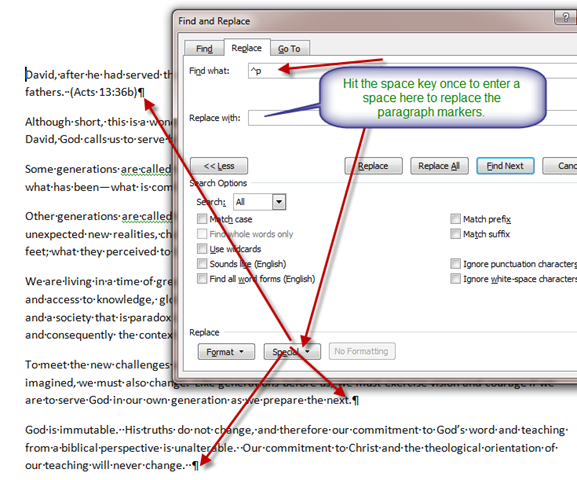
So what to do with Amazon?

Against this backdrop, what does Amazon's future hold?  

An Amazon spokesman declined to comment for this column. But in a recent conference call with investors, when asked about the emerging book battles, Amazon finance chief Thomas Szkutak responded: "We think we are positioned very nicely from a digital perspective. We think we are focused on the customer, and I think Kindle is certainly a good example of that."

Even without the price advantage, the Kindle would be good enough for many book fans, particularly older readers who will be happy to read books and newspapers on the Kindle's black-and-white screen. "It is a generational thing," says Eckler. "The Kindle is simple. There are not a lot of buttons."

Wang, of Credit Suisse, believes Amazon will continue to see 7.5% annual growth in North American book sales over the next five years, even with Apple entering the market.

There's also a macroeconomic reason Amazon will be OK: Online sales still represent only 3.8% of overall retail sales in the U.S. So there is still plenty of room for Amazon, the leader in the space, to grow as more retail moves online, says Mark Mahaney of Citigroup.

The key takeaway for investors is this: Don't buy Amazon stock expecting the kind of huge gains seen over the past couple of years. Many market players will wait to see how the online retailer manages the all-digital transition, but with savvy competitors such as Apple attacking its core book market, growth will slow.

Apple's stock, on the other hand, just keeps rising. You would be buying today at an all-time high, which can be risky. But citing the iPad, plus continued strength in iPhone and Mac sales, Credit Suisse analyst Bill Shope has an outperform rating and a 12-month price target of $275 on Apple stock, from about $223 today.

For consumers, the book battle could mean higher prices on new and best-selling e-books, as Apple aligns with publishers to raise prices above Amazon's big discounts. But gadget prices should fall quickly as the competition heats up.

And the cool news is that the iPad may open up a whole new world of "words" that brings lots of cool features to the concept of a book. Amazon and others will have to match technologies or lose out. The simple act of reading is changing forever.

At the time of publication, Michael Brush did not own or control shares of any company mentioned in this column.