What I Have on My Home Screens and Mac to Increase Productivity

What I Have on My Home Screens and Mac to Increase Productivity

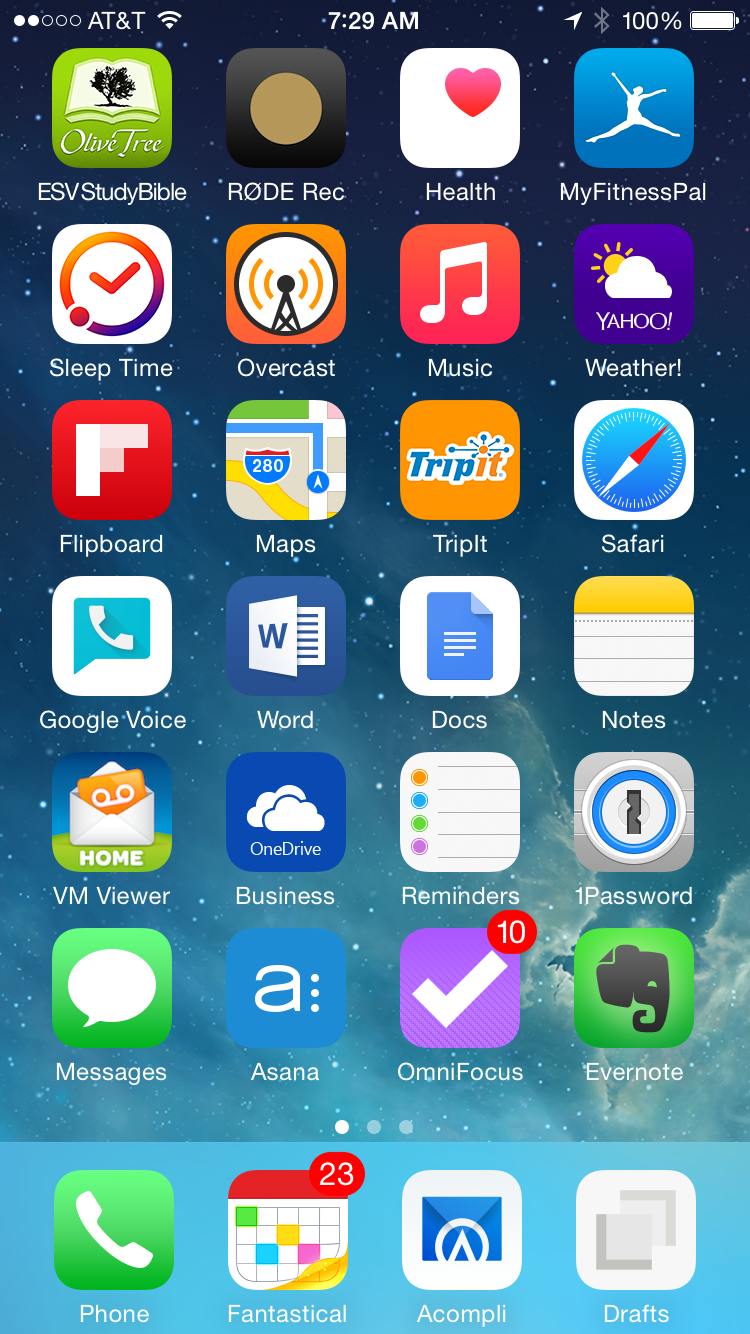
I’m not OCD but I am constantly tweaking the tools I use to increase my productivity. Over the last several years I have settled on the applications listed below. I have listed them by device: iPhone, iPad, and Macbook Pro. NOTE: If you use a PC, Windows, or Android, these or similar applications are available for your devices.

Read More

Regaining Control of My Life: How I Make My Smartphone My Servant

Regaining Control of My Life: How I Make My Smartphone My Servant

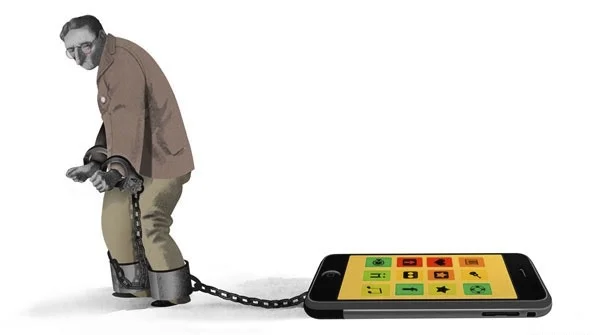
Are you the Master or the slave of your smartphone? Before you dismiss this question too quickly take a few moments to watch this short video: I Forgot My Phone.

It is not the purpose of this article to make you feel guilty. The purpose is to help you become the master of your phone rather than its slave.

Like overcoming any addiction or enslavement, the first step is to admit that you have a problem. You have to admit that you are shackled to that beeping, buzzing, blinking omnipresent electronic device.

Do you have a problem? Let’s find out. Take an inventory of your “relationship” with your smartphone. * You might be a slave to your smartphone if:

Read More

How to Help Your Parents Navigate Social Media

Social-Media-Icons

By Dr. Barrett Mosbacker

How to Help Your Parents Navigate the World of Social Media

It has always been a challenge raising children but in today’s networked, always connected world it is even harder. Social media has opened up a whole new frontline in the battle for our children’s minds and hearts.

Wringing our hands will not help our parents. Condemning the evils of the Internet and social media will not help them. Suggesting that they unplug is wrong and unrealistic.

Our responsibility is to provide them and their children with biblical and practical ideas on how to use social media in a Christ honoring fashion. We should prayerfully strive to teach them to “take every thought captive to the obedience of Christ,” including thoughts and practices related to the use of social media.

Rather than write an article about how best to help parents, I thought it might be just as helpful to share the outline of a talk I have prepared for our Elementary PTF. It certainly can be improved and expanded upon but perhaps it will provide you some talking points for your own presentations. Keep in the mind that the following are talking points, it is not a written article so the format and punctuation will reflect its purpose.

How to Help Your Children Navigate the World of Social Media *PTF Talking Points**

Why We Create Technology

Animals do not create technology nor to they create culture and civilizations. Only man creates technology. Why? What enables and compels human beings to create tools or technology?

We Are Made in God’s Image

We create, including technology, because we are like God, we bear his image, we share in some of his attributes some of his abilities. Genesis 1:1–25 describes God’s creative work and at the end of each creative act Mose’s writes, “And God saw that it was good.” And then Moses describes God’s creation of man:

Then God said, “Let us make man in our image, after our likeness. (Gen. 1:26a)

When the Bible describes man as made in God’s image it means that God made man a little like himself. We are, to put it lightly, “chips off the old block.” God, the Creator of all that exists, saw fit to share with us many of his divine attributes. Like God, we too are spiritual beings. We are able to love. We have a kind of moral freedom. And we are able to create.

We create wheels, space stations, and smartphones because we are like our Creator. Technology is an expression of that creativity in practical ways that can make our lives better and in doing so beings honor to the Creator whose image or likeness we bear.

Technology is Neutral, We Are Not

But like everything we touch, sin corrupts our use of God’s good gifts. Technology is morally neutral, but how it is used is not. Our challenge is not to run away from technology but to use it for good.

Benefits of Social Media

• Connecting with friends and family • Rapid communication • Sharing and preserving memories

Challenges of Social Media

• Loneliness in a crowd • We leave digital breadcrumbs and lose privacy • From our children’s earliest ages pictures posted by parents and relatives are in the public domain. There is no longer a childhood refuge of privacy while growing up • Cyber bullying

Biblical Principles to Teach Your Children

• The Golden Rule:

So whatever you wish that others would do to you, do also to them, for this is the Law and the Prophets. Mat. 7:12

• Whatever is Excellent:

Finally, brothers, whatever is true, whatever is honorable, whatever is just, whatever is pure, whatever is lovely, whatever is commendable, if there is any excellence, if there is anything worthy of praise, think about these things. Phil. 4:8

• A Good Reputation:

A good name is to be chosen rather than great riches, and favor is better than silver or gold. Prov. 22:1

• Bad company corrupts good morals (including online company):

Do not be deceived: “Bad company ruins good morals. 1 Cor. 15:33

General Principles to Teach Your Children

• Don’t ignore real people and those with you. • Do not text, email, chat, record, or do anything else through social media you would not do in person or you would not say in front of your parents or pastor. • If you mess up we will “ground” your use of technology and social media. We will talk about it, learn from it, and start fresh. • Don’t gossip about others online.

Tips for Parents to Follow

• Be a parent • Set clear standards • Be a good example • Use social media as a good excuse or vehicle to teach important biblical principles and wisdom:

And these words that I command you today shall be on your heart. You shall teach them diligently to your children, and shall talk of them when you sit in your house, and when you walk by the way, and when you lie down, and when you rise. You shall bind them as a sign on your hand, and they shall be as frontlets between your eyes. You shall write them on the doorposts of your house and on your gates. Deut. 6:6ff

• Control connected friends just like physical friends • Monitor

Rules to Enforce with Your Children

• It is the parent’s device it is on loan to them. • You can always inspect the device(s) and you should. • You will always know the password for every device and internet site and service. • Have all devices turned into you at bedtime. Don’t leave them in your child’s room at night. • Limit time on devices. • If the device is lost or damaged make your child pay or work to replace it.

How To Deal with Cyber Bullying

• Don’t always assume it’s someone else’s child. YOUR children and MINE are sinful. They lie. They can bully others. • If a parent contacts you about your child’s online behavior listen (be quick to hear, slow to speak) and don’t seek to defend—seek the truth--so that you can respond biblically to the parent and your child. • Teach, discipline, and restrict if your child abuses others through social media. • Don’t ask the school to do your job, e.g., dealing with other parents. We are here to help but we cannot police the Internet nor deal with everything that happens outside of school. That is your responsibility. Don’t try to avoid conflict with other parents by asking the school to handle situations that occur after school hours and that are your responsibility. • If your child is being bullied online: contact the child's parents. Speak the truth, as you understand it, in love. Listen to make sure you have the full story. • If your child is being bullied online, have your child unfriend, unfollow, block texts, etc., from the perpetrator(s). Don’t allow them to stay in the firing line! • When appropriate, e.g., the abuse occurs during school hours or during a school event, report it to parents and to a teacher, coach, or principal.

Tools You Can Use

http://mashable.com/2013/08/09/how-to-prevent-porn-sexting/?utm_cid=mash-com-fb-main-link.

• K9 Web Protection • STOP P-O-R-N • Safe Eyes • FamilyShield • UKnowKids.com • Change Search Settings on the Browser • User Block

Parents desire and need our help. Be proactive and reach out to them through a presentation, a workshop or an article. They will appreciate it.

Google

Sticky Notes and Technology-Helping Teachers in the Classroom

Quickschools logo Guest Article (QuickSchools)

Who doesn’t love sticky notes? Sticky notes are perfect for quickly jotting down notes and ideas, and we can stick them anywhere. We use them every day in our homes and offices, and also in the classroom. There are hundreds of ways that teachers use sticky notes. Here are some classic examples:

–Make a seating chart. Students love the bright colors and teachers can change a student’s seat simply by moving a sticky note.

–Keep notes about students’ progress and stick them in a grade book for easy reference during parent/teacher meetings and end-of-the-semester grading.

–Create a colorful classroom calendar to announce daily activities, school events, and project due dates. Calendars can be easily rearranged using sticky notes.

–Students love sticky notes, so let students use them to write questions and comments and stick them on a special community board.

We love sticky notes because they are colorful, portable, and can accommodate almost any activity, so it is exciting to learn that technology has caught up with the easiness and practicality of the sticky note. With a school management system, teachers can accomplish the same tasks as with sticky notes, only better.

School management software provides a way for teachers to write, organize, and access their notes electronically. Notes can be entered and accessed anywhere, anytime. It eliminates the need for clunky grade books which can be a challenge to keep organized (and can have a bunch of sticky notes hanging out of them).

The classroom forum feature enables students to ask questions and share ideas with the teacher and the class outside of the classroom. The forum can also be used as a fun way to engage students in a classroom conversation or debate using the texting technology that they love.

And school management software not only helps teachers, but it helps parents and students, too. They have access to the classroom calendar, assignments, projects, grades, and attendance right from their home computer.

Another tremendous benefit of school management software over sticky notes is that it is always available. Teachers don’t have to wait to get back to their classrooms, students don’t have to wait to get help, and parents can keep track of their student’s assignments and progress on a daily basis.

Sticky notes will always be used in the classroom in colorful displays and as fun bulletin boards. But when it comes to classroom organization, accessibility, and communication, then school management software is the best tool to help schools, teachers, and students succeed.

For more information about how QuickSchools school management software can help your school, visit QuickSchools.com.

Google


How and Why I Went Paperless and How You Can Too: Part 3 Workflow--Putting it All Together

By Dr. Barrett Mosbacker

In my previous two posts in this series (Part 1: Why I went Paperless--There Had to Be a Better Way and Part 2:How I Went Paperless: What I Use) I explained why I have gone paperless and the hardware and software that I use. In this third and final article in the series I will demonstrate how I work paperlessly. I am also including diagrams to illustrate the process for emails, paper documents, and meetings. 

It is one thing to have a fleet of powerful applications at your disposal. It is quite another to develop a workflow using those applications that is easy, efficient, and dependable. The process of creating such a workflow is never done but I believe I have reached the point where I spend little time managing documents, communications, and applications and more time focused on what is important—people and projects.

Here, in brief, is a sample of how I have managed to create an almost frictionless, paperless workflow. This is obviously not comprehensive but I hope it provides an example of how to process all the information coming your way without paper.

Incoming Emails

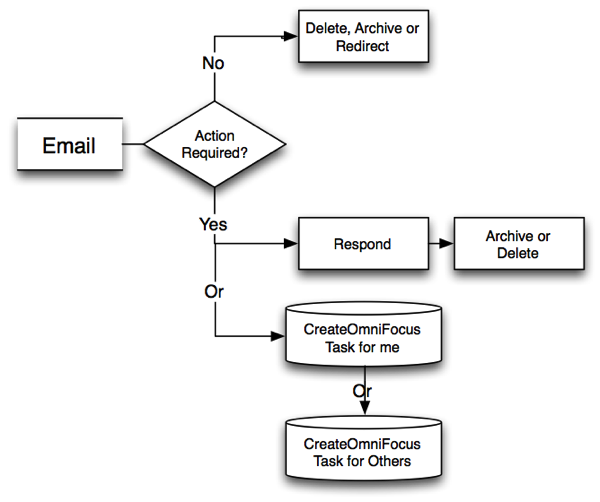
I usually deal with email in batches (it is far more efficient that way). For each email I receive, I do one of the following: 

  • Delete it 

  • Archive it 

  • Forward/Redirect to the appropriate person

  • Delegate it as a follow-up or project for someone; I forward the email to him/her and simultaneously create a follow-up task in OmniFocus directly from the email

  • Create a task or project for myself

I do not use my email inbox to track todos and follow-ups!

NewImage.png

NewImage.png

Incoming paper

When I receive paper or printed documents from others, I do one or more of the following: 

  • I ask my staff to send it to me digitally—I do not accept paper from staff. If the document is from a non-school employee, I also ask for a digital version if I deem it appropriate and polite. 

  • Trash it 

  • Scan and archive it 

  • Scan and email the document to someone else as a delegated task or project and simultaneously create a follow-up task in OmniFocus directly from the email 

  • Create a task for myself if related to a project.

NewImage.png

NewImage.png

Meeting Notes

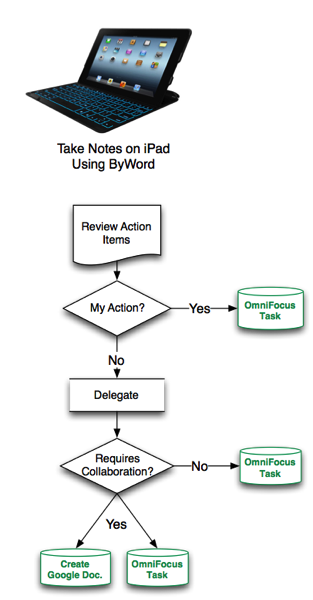
Here is how I handle meeting notes: 

  • I use ByWord to take my notes (see above for details) 

  • After the meeting, I create projects and/or tasks for others and/or myself in OmniFocus (OF) from the action items in my notes.

  • After creating the OF projects and/or tasks, I archive the notes in Evernote and link the notes to the tasks/projects in OmniFocus for reference. 

  • For a project involving more than one person, I create a collaborative document in Google Drive for those working on the project and link the Google document to the OmniFocus project.

NewImage.png

NewImage.png

OmniFocus

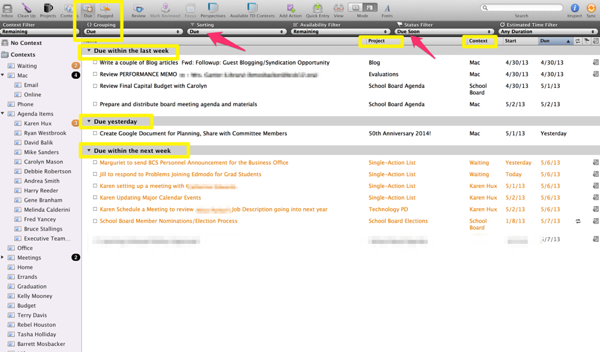
The following diagrams illustrate how the above processes look in OmniFocus:

The Due Date Perspective

NewImage.png

NewImage.png

Actions Items in Project Perspective

NewImage.png

NewImage.png

The Hard Work of Creating New Habits

I wish I could tell you this will be easy. It is not.

When first starting your journey to the paperless promise land you will have some mountains to climb and rivers to cross. You will initially increase your stress and reduce your productivity as you learn new programs and develop a new workflow. It takes time and consistency to master a new routine and form new habits. 

How long does it take to create a new habit? Accordingly to research, over two months. “We are all wired differently so how long it takes for us to form a new habit will depend on each person. The popular psuedo-myth is that a new habit forms after 21 to 28 days.  However, psychology research from the European Journal of Social Psychology seem to indicate that it takes around 66 days to truly ingrain a new habit into your brain.  At 66 days of continuous activity, that habit is going to be as much of a habit as it is ever going to be.  In other words, the action has become automatic and that habit is never going to get more habitual.”

In short, hang in there! This is not a sprint, it is a marathon.

Final Thoughts

If you find yourself struggling to manage the tsunami of information coming at you in paper and digital form, you find yourself working feverishly to juggle multiple projects and if you want to reduce stress and increase your productivity, I recommend that you consider going paperless. 

Give it try-going paperless will save you time, money, and stress once you master the tools and workflow. It will be worth the time and effort. At the end of a hard journey is a better place for your professional and personal life.  

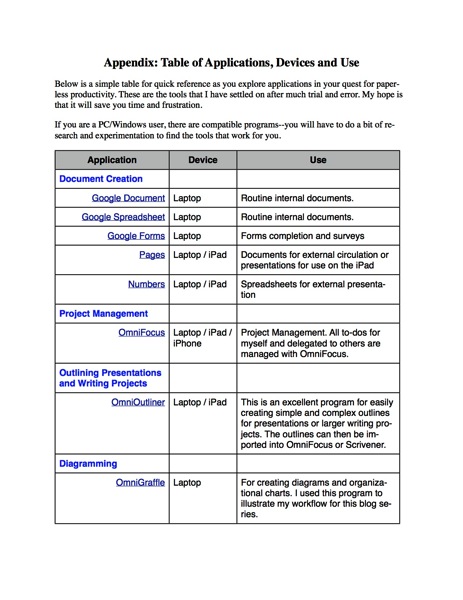
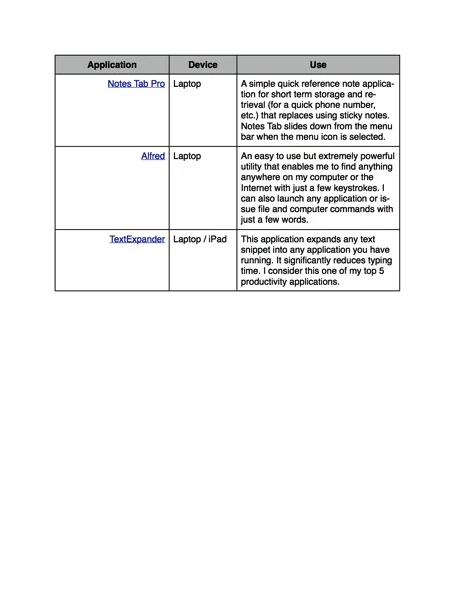
Appendix: Table of Applications, Devices and Use

NOTE: You can download this Appendix as a PDF here.

Below is a simple table for quick reference as you explore applications in your quest for paperless productivity. These are the tools that I have settled on after much trial and error. My hope is that it will save you time and frustration. 

If you are a PC/Windows user, there are compatible programs--you will have to do a bit of research and experimentation to find the tools that work for you.

Appendix Paperless Applications 1.jpg

Appendix Paperless Applications 1.jpg

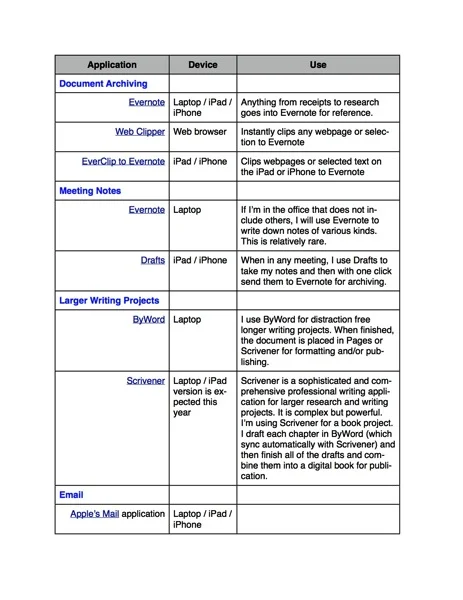
Appendix Paperless Applications 2.jpg

Appendix Paperless Applications 2.jpg

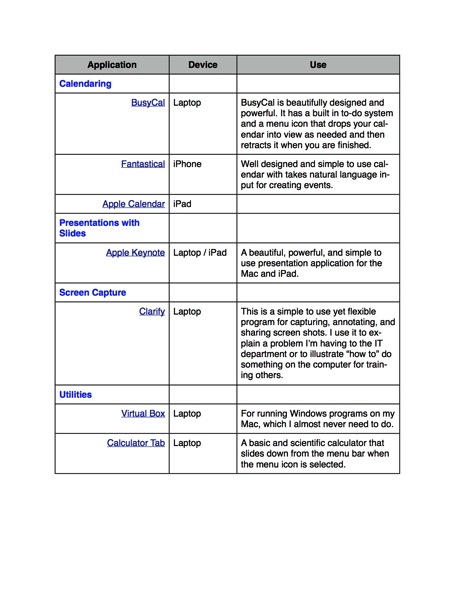
Appendix Paperless Applications 3.jpg

Appendix Paperless Applications 3.jpg

Appendix Paperless Applications 4.jpg

Appendix Paperless Applications 4.jpg

Paperless Part 2: HOW I Went Paperless and What I Use

By Dr. Barrett Mosbacker

In my previous post (Part 1: Why I went Paperless--There had to be a better way), I explained what motived me to go paperless and my specific goals. I also showed you a picture of my office. This is my computer desktop; just as neat and again, I did NOT clean it up for this article. I have one folder on my desktop with two or three active documents. How can I have such a neat office and computer desktop? Because everything is digital and in its place to reduce stress and increase productivity.

Note: throughout this article you will find links to sample screen shots to illustrate how the applications are used.

My Mac Desktop.png

My Mac Desktop.png

It was not easy to change deeply ingrained habits. For my entire life I have handled paper. Over the years I developed a workflow that, well, worked-for paper. My process was familiar and comfortable. But, my workflow was developed around paper and filing cabinets, not digital communications and mobile devices.

Adding to the difficulty is the fact many people still operate in both the digital and analog worlds. I receive much unwanted paper in meetings, at conferences, and in the mail. And I receive an ever increasing avalanche of digital documents and communications.

Everything was jumbled together. Projects consisted of paper documents, digital documents, emails, and websites. Meeting notes were on legal pads with followup communications in email. Finding, producing, sharing, and consolidating information from the paper and digital worlds was becoming increasingly complex and frustrating.

The struggle was not convincing myself that I needed to go paperless. The struggle was finding the right combination of software and hardware and designing an easy to manage workflow that worked across platforms without unnecessary overlap and complexity. The struggle was also forcing myself to abandon old habits and create new ones.

After much trial and error, I can confidently declare that I am now happily and productively paperless. I can also assert that short of an apocalypse, I will never go back to using paper.

The information below is a summary of the tools I use and my workflow. I am not attempting to provide a step-by-step guide for these tools. Instead, my propose is to offer a model and way of thinking about these tools and workflow so that you can adapt them to your situation, needs, and preferences.

Hardware

For years I was a diehard PC and Windows user. My software and workflow revolved around the Wintel platform, including Microsoft Office. I have switched to Apple hardware and for most, not all, document production and communication I rely on cloud-based services such as Google. The reasons for the switch are explained below.

But—and this is important—this series of articles are not intended to promote one platform over another; one can be equally successful in moving to a paperless workflow using the Wintel platform. It is not necessary to switch to the hardware and software applications I have listed below. There are equally, and perhaps in some cases, better services and applications from other companies. The key is understanding what is needed to go paperless so that you can choose the best combination of hardware, software, and services to meet your needs. For me, after years using Windows software, I have switched to Apple and Google hardware, software, and services.

I use the following hardware: Macbook Pro Retina, iPad with a Logitech FabricSkin Bluetooth Keyboard Folio, an iPhone 5 and a Fujitsu scanner. I chose to move to Apple hardware because I became convinced that for my purposes they are more reliable and require less work to maintain. Because the hardware and software are designed by the same company they work seamlessly together. Apple support is rarely needed and is excellent in those rare instances when it is needed. Support is readily available by phone or from the local Apple store. The fact that the hardware is beautiful and pleasant to use is a bonus. I want to again emphasize, however, that for others the Wintel platform may be better.

Applications and Services

The following list is not comprehensive; it is a summary of the major applications and services I use for the majority of my work. For each application I will provide a brief reason for the selection and how it is used. Later I will share how I use the applications for my workflow.

Document Creation

Frankly, before switching to Apple and Google products I was nervous. Being a Microsoft and PC power user, I was concerned that I would lose the power and flexibility that I needed to get my work done. I was apprehensive that I may not have access to the best software and that I would have trouble integrating my workflow with colleagues and friends who were on the Wintel platform.

My fears proved to be unfounded. I didn’t lose anything—in fact, I gained a great deal. Whereas on the PC/Wintel platform I was restricted to Microsoft, Windows-based, and Google products, on the Apple platform I had access to every application made for all three platforms: Microsoft Office for the Mac, Apple’s iWorks and iLife application suites, and Google’s applications and services. I also had access to any Windows-based software I needed to run by running Virtual Box or Parallels on my Mac. In other words, I have the best of all worlds.

What surprised me the most is that I found myself not needing or wanting to use Microsoft products (except for the occasional complex Excel spreadsheet) or other Windows-based applications. I have found wonderful, and often superior, substitutes for everything I used on my PC. I have nothing against Microsoft. They sell arguably the most feature rich professional office software on the planet. If your work requires the production of complex spreadsheets and text documents, you cannot beat MS Office. I found, however, that for 95% of my work, I did not need the complex or advanced features. For those few (and they become rarer by the week) projects that require advanced features, I can fire up MS Office for the Mac and do whatever I need to do.

Google Apps (Documents, Spreadsheets, Forms, Drawings)

Google offers a full suite of products and services. You can find a comprehensive list here. Google’s applications provide the basic features most people need but they lack some advanced features. There are several advantages of using Google Apps (note: Microsoft’s Office 365 suite and SkyDrive offer similar features but I have found their collaboration capabilities to be less capable than Google’s). The apps are free or very low cost, they are always up-to-date, you do not have the overhead of maintaining and supporting the software, and most importantly for workflow, you can collaborate and share documents without the need to constantly send attachments in emails, although you can if you desire. For a good comparison between Google Apps. versus Office 365 click here. The author is a bit biased toward MS but it is a good comparison.

I use Google Apps (Documents and Spreadsheets) for creating basic documents, collaboration, and sharing. I also use them when I need to collaborate with people outside of the school. Google applications are my no frills, workhorse applications.

Apple Pages and Numbers

I use the Apple’s Pages application when I want to produce a slick, professional looking document or newsletter to send to others. I also use Apple Pages for all text-based presentations that I give. By saving the presentation as a Pages document in iCloud, I can easily access it on my iPad for my many speaking engagements. iCloud keeps both versions in sync. I may draft the document in Google Docs or ByWord on my Mac (for example, I wrote the draft of this article using ByWord: more on the reason for this below) and then pasted the content into Pages for polishing. I use the Drafts application when taking meeting notes on the iPad.

I use Numbers when I want to produce a basic but well designed spreadsheet with visually informative and appealing charts. Numbers is a good application but lacks many of the advanced features found in Excel.

Word and Excel for the Mac

Surprisingly, I no longer ever need or desire to use MS Word. I can open any Word document I receive in an email in Pages or Google Docs. I find MS Word to be a feature rich but bloated with a complex and distracting interface. Excel is unquestionably the most capable spreadsheet program you can buy. I use Excel when I receive an Excel spreadsheet from others. I also use it when I need to produce or work with a complex spreadsheet. There are times when there is no substitute for Excel. In those instances I fire up Excel for the Mac.

ByWord

Modern word processors can be distracting because they tempt one to fiddle with formatting the text. This creates distraction when you need to focus on your words--and just your words. This is why I use ByWord. It is a beautifully designed minimalist application that does two things extremely well: it enables you to write free of distraction and it syncs with your other products through iCloud and/or Dropbox. Click here for a screen shot of a draft I created for a blog article.

I have ByWord on my Mac, my iPad, and my iPhone. I can immediately begin work on a draft document whenever I have a few undistracted minutes, e.g., on the plane. Because it is minimalist in design, it also uses less battery power enabling me to work longer when I don’t have access to a power outlet.

Once the draft is finished in ByWord, I export it as an RTF or HTML file to Google or Pages for finishing. It can also be exported as a Word or PDF document.

Apple Keynote

Keynote is a fantastic application for producing compelling, fresh presentations. It is powerful and feature packed but easy to learn and use. Because it uses iCloud to sync seamlessly with the Mac and other iOS devices, I can produce a beautiful presentation and then use my iPad for the presentation. This is perfect for traveling to conferences. I produce the presentation on my Mac (you can also produce them on the iPad but the iPad version is a bit more limited), sync it to iCloud, and leave the laptop at home. At the conference, I connect my iPad to a projector and use my iPhone as the remote. Simple, light, and fast. And, if I make revisions to the presentation en route to the conference and make additional revisions after the presentation, all of the changes are synced to iCloud. When I open my Mac, the revised presentation is ready for me. This same process works with Pages and Numbers.

Keynote also syncs seamlessly with iPhoto and iMovie. Consequently, you have a simple and consistent way to add beautiful photos and compelling videos to your presentations and everything is always in sync and available across all of your devices.

Document Sharing and Archiving

Google Drive

Google Drive does three things extremely well: It is the access point for all of your Google applications and documents, it archives and saves your documents automatically, and it is the platform for collaborating on and sharing your documents. Google Drive also enables you to create, edit and save documents offline (using Google’s Chrome browser) so that you do not need an Internet connection to get work done. Once you are back online, Google Drive automatically saves and syncs your documents.

Evernote

Evernote serves a very specific and useful purpose. It is my primary repository for document archiving, retrieval, and sharing when I do not need to work on them. The distinction between Google Drive and Evernote is important. While there is overlap, e.g., both programs save, archive and sync your documents and information, Google Drive is best for “living, active” documents. Evernote is best for static reference material.

For example, any work related document that is being worked on, or that ever may need to be worked on by others, is in Google Drive. Letters, policy manuals, spreadsheets, schedules, etc., fall in this category and are on Google Drive.

Receipts, research articles, articles from the internet, User Manuals, and any other static document that is used for reference are in Evernote. I also store important personal documents in Evernote, e.g., insurance papers. That way, if there is a fire I still have access the critical documents. Although I could store these in Google Drive, Evernote is better at quickly capturing information from the web on your laptop or mobile device. It is ideal for quickly searching to find just what you need. If you have a Business Account with Evernote, you can also create a Business Library of reference material for employees, e.g., Technical How-To articles from the IT department, Employee Manuals, etc.

Communications and Calendaring

I average over 1,200 business emails each month (not counting personal emails). I also receive many phone calls and text messages. Efficiently managing and curating this flow of information requires the nimbleness of a ninja and the discipline of an Olympic athlete. It also requires the right tools.

I have tried just about everything available. I spent years on Outlook (including SharePoint) and was very comfortable with the program. It is powerful and designed for the enterprise. For the same reasons I have stated above, I decided that it was time for a change. As a school, we no longer wanted to be in the email and server business. We wanted our IT staff to focus on supporting technology integration in the classroom, not on managing email, SharePoint, servers, and antivirus software.

With our move to Google products, we also adopted Gmail, Google Calendar, Google Hangouts (for video-conferencing), Google+ (which we use for business related social media interaction), and a host of other applications that are integrated and cloud-based. As a consequences, we spend far less time (and money) managing email and calendars and we are able to integrate document creation and sharing with all of our digital communications. This enhances productivity, saves money and gives us capabilities that would otherwise be too complex and time consuming to manage.

I have vacillated between using Gmail and Google Calendar in the browser (Safari and Chrome) or using Apple’s Mail and Calendar applications (or 3rd party applications). After experimenting with many options, I have settled on Apple’s Mail for email and BusyCal for my Calendar application. While there are advantages to using the browser version of Google products, the overall hardware and application integration on the Mac and iOS devices is better when using Apple’s applications or well designed third-party applications like BusyCal. I have also found, after spending time to master it, that Apple’s Mail program is very powerful making it easy to process an overflowing inbox quickly. BusyCal is beautifully designed and powerful. It has a built in to-do system and a menu icon that drops your calendar into view as needed and then retracts it when you are finished. This saves valuable screen space and is one less window to manage.

For meetings and collaboration that do not require a face-to-face meeting but do require live communication rather than a torrent of emails, I use Google’s powerful Hangouts video-conferencing application. You can conduct a simultaneous video call with 10 people and share Google documents and/or your desktop during the call. It is a powerful program and is free. There is also an iOS application for Google Hangouts enabling you to place video calls from your iPhone or iPad when traveling.

Phone Calls

Going paperless works great for handling phone calls. My administrative assistant takes messages in a shared Google document titled “Dr. Mosbacker’s Messages.” Each morning she opens that document and enters the date. During the day she records the messages and return phone number. This document is an open tab on my browser. When I am ready to return calls, I click on the browser tab (from my Mac, iPad, or iPhone) and have all of the information I need. I can then make notes of the call in this same document and mark the call completed when I’m finished. If I ever need to find that message, person’s name, or contact information, I can search the message document from any of my devices. No paper, everything is archived and searchable. Click here for a screen shot of my messages.

Note Taking

I have a lot of meetings and I have to take a lot of notes. I want to do so in meetings without coming across like a geek. There are several challenges in taking digital meeting notes.

If you use paper, you are not paperless so you have to retype notes you need to keep (or scan them). You can’t efficiently share paper notes, and they are not immediately connected with your other documents and communications.

If you use a laptop in a professional meeting you can come across as geeky in some settings. The clacking keyboard is distracting and the screen puts a barrier between the attendees. And you are tempted to multitask (check email) rather than giving the attendees your undivided attention.

I have found the iPad to be the solution. It is light, is not distracting nor especially geeky, has long battery life and provides several note taking options not typically available on the laptop. You can type your notes using the silent virtual keyboard, you can use an iPad case with built in bluetooth keyboard (my preference), or you can handwrite your notes using a stylus with a note taking application like Notability. The best method will depend on the person and circumstances.

My objectives are to use as few applications a possible, produce digital notes, have them safely archived for future reference, and have an efficient way to delegate and keep up with tasks flowing from the meetings.

After much experimentation and no small amount of frustration, I have found a very effective and efficient system that meets my objectives. This is far simpler then it may sound but essentially I use and application called Drafts in combination with TextExpander—this program is reason enough to use a Mac!

As indicated above, I use ByWord for writing drafts of larger documents, e.g., a blog article, chapters in a book, etc. For meeting notes I use Drafts. It automatically saves your work and syncs it to your other iOS devices. It is distraction free, does not require much power, and works great on the iPad and the iPhone. When combined with TextExpender one can open Drafts and with a few quick keystrokes have TextExpander drop a meeting template into Drafts and you are ready to go.

One of Drafts most compelling features is the ability to send your meeting notes with just one click to Evernote, an email, Dropbox, OmniFocus, Twitter, Facebook, as a TextMessage and a host of other applications and services too numerous to list. You can also use “Open in” to export a draft to any other app installed that supports importing text files. Click here for an illustration.

You can type quietly on the iPad using the bluetooth keyboard case. After you have completed your meeting notes, including to-do items for yourself or others, you select each item and send it to OmniFocus (more on OmniFocus below) or Evernote (my preference because then all of my meeting notes are archived in the appropriate project notebook). For example, I have an interview template in TextExpander. Prior to the start of the interview, I open my iPad, fire up the Drafts app., and open the interview template with TextExpander. When the interview starts, I discretely take my notes in Drafts using the embedded template. After the meeting is over, with one click I send the notes to Evernote for archiving. No paper. No filing. And, I can always access these notes on any device, anytime, anywhere. I can also share my interview notes with my administrative assistant or others as needed.

Project Management

Finding THE project management tool has been my biggest challenge. For my purposes, the ideal project management application would:

  • Work on all of my devices.

  • Be powerful and flexible without being overly complicated.

  • Be developed and supported by a company that I trust and was confident would be around for a long time.

  • Integrate tightly with my other major applications (Google Docs, ByWord, Drafts, Gmail, Apple Mail, BusyCal, and Evernote).

  • Enable actions and viewing of projects, tasks, and documents by project, date, person, or context.

  • Alert me when projects were coming due, were due, or were late.

  • Give me the ability to create tasks or projects directly from emails, Drafts, or Evernote without copying and pasting.

OmniFocus does all of this and more. The capabilities will be briefly illustrated in the next article in the series but suffice it to say that OmniFocus integrates all of the above features into one powerful yet relatively simple product. That is no small feat! Click here for a sample screen shot.

In my next and final post (Part 3: Workflow--putting it all together) in this series I illustrate how I use the hardware and software to create a paperless workflow. I will also provide diagrams illustrating how the workflow works for emails, paper documents, and meetings.

Google

An Affordable Solution for AP Programs

An affordadable AP program image

By Dr. Barrett Mosbacker

Advanced Placement (AP) courses are an important factor for many parents and students who are considering enrolling in a Christian School. AP courses provide the highest achieving students the chance to study college level material. Parents and students see AP courses as an academic challenge, a way to better prepare for college, and an advantage on college applications. Yet many Christian schools trail their public school competitors in AP course offerings. Larger, well-funded public schools have the competitive edge among families with high academic standards because these schools can provide students a broad AP curriculum. How can Christian schools maintain their small class size and value-driven curriculum while competing with public and large private schools that provide a wide range of AP courses? Increasingly, Christian schools are looking online for the solution to this problem.

Online Advanced Placement courses allow Christian schools to easily expand their curriculum. Through online learning, courses can be tailored for the individual student. If you have a student interested in engineering, but your school does not provide an AP calculus course, online learning can be an efficient solution. Instead of losing that student, your school could provide a flexible and affordable online option for that student. Online learning keeps the education within your school. There  is no need to construct complicated relationships with public institutions in order to serve single student needs.

Online AP courses are the most affordable solution for Christian schools in many situations.

Who pays for it? The cost of offering AP courses can be covered through tuition and additional fees paid by families. Schools can provide access to the online course, but students and their families pay the fee. Under some arrangements, the family also pays an extra fee that can help a school pay for administrative overhead and other programs.

What about faith? Online AP courses are now offered to meet the educational goals of a Christian education. As a Christian school you strive to offer all your students a well-rounded and rigorous education. Offering an expanded range of AP courses online helps you achieve that with your most gifted students. You are helping them shine their light in the world.

How will it fit into the student's schedule? Online learning is flexible and allows schools to set their own start and end dates for an AP course. With the AP exam in May, students can start the online course as early as June to prepare for the next yearís exams. The summer months will provide your students ample time to prepare and increases their chance of securing college credit.

A Christian School Educatorís Guide to Online AP courses

AP Online courses put a Christian school on equal footing with its public counterparts without placing additional strain on the school's resources. Learn more about it in our new white paper, ìOnline Opportunities for Christian SchoolsDownload this free resource for Christian educators using the link below.

// <![CDATA[ (function(){ var s='hubspotutk',r,c=((r=new RegExp('(^|; )'+s+'=([^;]*)').exec(document.cookie))?r[2]:''),w=window;w[s]=w[s]||c, hsjs=document.createElement("script"),el=document.getElementById("hs-cta-e2d3fe85-105c-45eb-8430-5b79bb3129fd"); hsjs.type = "text/javascript";hsjs.async = true; hsjs.src = "//cta-service-cms2.hubspot.com/cs/loader.js?pg=e2d3fe85-105c-45eb-8430-5b79bb3129fd&pid=188329&hsutk=" + encodeURIComponent(c); (document.getElementsByTagName("head")[0]||document.getElementsByTagName("body")[0]).appendChild(hsjs); try setTimeout(function() , 2500); })();</p> <p>// ]]</p></div>

How and Why I Went Paperless and How You Can Too: Part 1--There Had to Be a Better Way

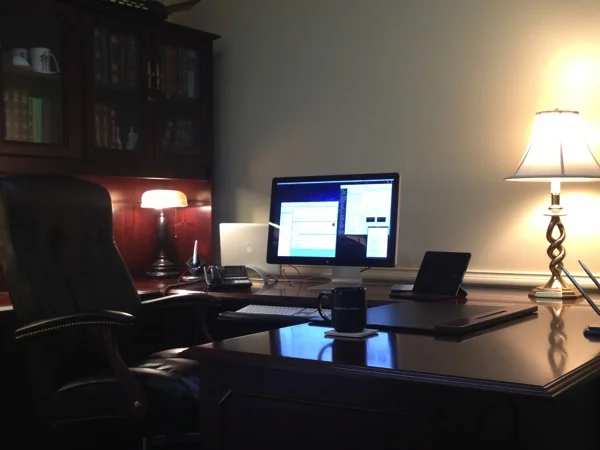
This is my office.

Paperless Office Mosbacker.JPG

Paperless Office Mosbacker.JPG

By Dr. Barrett Mosbacker

I did not clean it up for this article. I now function without paper. I’ll never go back to paper and I believe if you give this a try you won’t either. 

I am sharing with you why I went paperless and how I did it with the hope that you too will discover the increased productivity and reduced stress that I have found by changing how I do things.

To make reading easier and faster, I am writing this article as a series in three parts:

Part 1 Why I Went Paperless: There Had to Be a Better Way (Includes my goals)

Part 2 How I Went Paperless: What I Use (My hardware and software)

Part 3 Workflow: Putting It all Together (Includes workflow diagrams)

Part 1: Why I Went Paperless--There Had to Be a Better Way

I lead a large school on two campuses with 200 employees, nearly 2,000 students, 1,200 families, and with a multimillion dollar budget. I also have many complex projects in process simultaneously. For example, as I write this we are designing a new science and math building, preparing for a large capital campaign and continuing the rollout of our 1:1 computing program that we callLearning Unleashed. And of course there are the daily operational issues covering personnel, academics and curriculum, parent and student issues, athletics, facilities, admissions, finance, marketing, and a host of other day to day matters.

Adding to the mix are my family responsibilities, teaching adult Sunday School, teaching a graduate course as an adjunct professor, conference presentations, and my personal goals such as completing a book and writing this blog. I have many balls in the air, thousands of documents, and even more emails (over 1,200 work related emails per month), phone calls, meetings, and messages to manage.

I was finding it difficult to quickly locate what I needed when I needed it and even more difficult to manage the combination of paper and digital documents and communications related to projects and day-to-day matters. I knew that there had to be a way to consolidate all of this information so that I could be both more productive and less stressed. Going paperless has helped me achieve those goals.

Although being more productive and less stressed were my primary goals, there were also many secondary but important goals motivating the change. Here is my list of goals that explain why I forced myself to go paperless.

  • Increase productivity by being able to find any document or message from any device, anytime, anyplace.

  • Have one central “inbox” for everything that I receive so that I can quickly process it.

  • Become more efficient by speeding up my workflow.

  • Improve the ability to collaborate with my colleagues and associates anywhere in the world.

  • Have automatic backups of all of my documents, communications, research, and books in the event of hardware failure, fire, or natural catastrophe.

  • Be able to take notes in my many meetings and instantly have them saved and available for retrieval and sharing as needed.

  • Be able to easily convert meeting notes into tasks for myself or others.

  • Manage people and projects so that nothing falls through the cracks and to ensure that I am on top of all projects.

  • Manage my calendar and schedule so that it does not manage me.

  • Have an archive of all documents and communications for future reference should they be needed for projects or legal matters.

  • Reduce the cost of printing, filing, and mailing.

  • Eliminate filing cabinets and free up space.

  • Reduce paper to be more environmentally responsible.

  • Have a clutter free low stress work space.

In part two of this series I will explain how I went paperless and what hardware and software I use.

Google

Let’s Make Our Schools More Thrilling and Beautiful

Excited.jpg

By Dr. Barrett Mosbacker

Cruising at thirty thousand feet and intensively absorbed in my work, I was startled by the sudden outburst of fearful crying from a three year-old little girl frantically running down the aisle of the big jet. Her brown eyes were wide with fear and her face wet from the tears cascading down her cheeks. Somehow she managed to leave her seat without her mother’s notice. Disoriented and scared she stumbled past row after row of strangers unable to find her mother in the sea of unfamiliar faces. As a father of three daughters and the “pawpaw”of a little granddaughter, my heart went out to her. Although prudence dictated otherwise, I wanted to leap from my seat and pick her up to comfort her.

My heart also goes out to teachers and school leaders who, like that little girl, find themselves disoriented, perhaps even a little intimidated and frightened by a strange and constantly changing world. This is a new experience for most educators.

School work has historically been comfortable and predictable. It has been observed that if you took a teacher from the early 1900s and dropped her into most any classroom today she would hardly skip a beat. She would find a board at the front of the room (albeit it may be electronic) and neat rows of students waiting for her to speak. There would be some new things, a computer on the teacher’s desk and a copier down the hall, but fundamentally things would look and feel much like they did at the beginning of the 20th century.

This predictability is giving way to uncertainty created by the relentless currents of cultural, economic, and technological change. Nothing in our schools is untouched. Whereas schools have historically been islands of relative tranquility, teachers and school leaders are now feeling uncertain about their roles and methods amid the changes invading their schools. We feel the seismic vibrations of shifting cultural norms beneath us. And we are confronted with the ever quickening pace of technological innovation that is reshaping the way we work, communicate, and entertain ourselves.

Like the girl on the plane, these cultural and technological changes can cause us to become disoriented, feeling overwhelmed, even frightened. The familiar is giving way to the new and the strange. That which once seemed like bedrock—steady and predictable—now feels like quicksand.

Consider the Internet and mobile technology. In their just released book, The New Digital Age: Reshaping the Future of People, Nations, and Business, Eric Schmidt and Jared Cohen summarize how the Internet and mobile technologies are fundamentally reshaping our lives and institutions.

The proliferation of communication technologies has advanced at an unprecedented speed. In the first decade of the twenty-first century the number of people connected to the Internet worldwide increased from 350 million to more than 2 billion. In the same period, the number of mobile-phone subscribers rose from 750 million to well over 5 billion (it is now over 6 billion). Adoption of these technologies is spreading to the farthest reaches of the planet, and, in some parts of the world, at an accelerating rate. By 2025, the majority of the world’s population will, in one generation, have gone from having virtually no access to unfiltered information to accessing all of the world’s information through a device that fits in the palm of the hand. If the current pace of technological innovation is maintained, most of the projected eight billion people on Earth will be online …

As global connectivity continues its unprecedented advance, many old institutions and hierarchies will have to adapt or risk becoming obsolete, irrelevant to modern society. The struggles we see today in many businesses, large and small, are examples of the dramatic shift for society that lies ahead. Communication technologies will continue to change our institutions from within and without. We will increasingly reach, and relate to, people far beyond our own borders and language groups, sharing ideas, doing business and building genuine relationships.

If you substitute school for institutions and businesses in the above quote it reads, “As global connectivity continues its unprecedented advance, many [schools] and hierarchies will have to adapt or risk becoming obsolete, irrelevant to modern society. The struggles we see today in many [schools], large and small, are examples of the dramatic shift for society that lies ahead.” No one wants to become obsolete and irrelevant.

There is a sense in which the students sitting in front of us, or if we are an administrator, the young teachers in front of us, are strangers. They live in two worlds, not just one. They live in the physical world and in a virtual world. And they know nothing of our educational experience, one that relied on the teacher, the librarian, and the encyclopedia for information.

Our students are growing up in a world where everyone is, or soon will be, connected with each other. They carry the world’s information in the palm of their hand. If they need extra help, they don’t “need” to ask the teacher-they can text a friend, video-chat with an expert, or watch remarkably well constructed tutorials on Khan Academy. If they need information, they “Google it.” Teachers are needed for other things but they are not needed for delivering information.

How should we respond as Christian educators? With courage not fear, with optimism not pessimism, with excitement, not dread; with a vision for the future, not with a nostalgic longing for the past. We should respond with creativity, vigor and innovation, not with the mechanical and routinized habits that have become so comfortable but are increasingly arcane and irrelevant for our students.

Carpe Diem This is not Pollyannaish happy talk. The ability to seize the day, to courageously and creatively adapt one’s teaching and leadership to the opportunities before us and to the needs of our students,—not to our needs and preferences—is firmly rooted in God’s sovereignty, his commands, and his commission. 

—God’s Sovereignty— When thinking about change, one of my favorite passages is a short epitaph to King David: “For David, after he had served the purpose of God in his own generation, fell asleep and was laid with his fathers.” (Ac 13:36) This epitaph reflects the relevant servant leadership of David. David did not serve the previous generation, he served HIS generation.

That is our task, to serve the generation of students God has entrusted to our stewardship. We are not to be subservient to our past, to our habits, to our comfort, or to our preferences. We are to serve the purpose of God in our generation. In our case, this means the Internet generation—always connected and immersed in a world of ubiquitous technology.

We can serve optimistically and confidently when we learn to rest in God’s sovereignty, recognizing that he has determined when and where we are to serve.

God who made the world and everything in it, being Lord of heaven and earth, does not live in temples made by man, nor is he served by human hands, as though he needed anything, since he himself gives to all mankind life and breath and everything. And he made from one man every nation of mankind to live on all the face of the earth, having determined allotted periods and the boundaries of their dwelling place, that they should seek God, and perhaps feel their way toward him and find him. Yet he is actually not far from each one of us, for ‘In him we live and move and have our being’… ‘For we are indeed his offspring.’ (Ac 17:24–28).

We do not get to choose when or where we are born nor the circumstances and conditions under which we serve. We do choose how we are going to respond. In J.R.R. Tolkien’s Lord of the Rings - Fellowship of the Ring, the wise wizard Gandalph responds to Frodo’s dismay and fear:

Frodo: “I wish the Ring had never come to me. I wish none of this had happened.” 

Gandalf: “So do all who live to see such times, but that is not for them to decide. All we have to decide is what to do with the time that is given to us.”

That is how we should respond to the disruptions and changes around us—with the confidence that God has placed us here at this time, under these circumstances so that we might serve his purposes in our generation. It is not for us to decide when and where we serve, only how we will serve.

—God’s Command— Christians ought to be optimists, positive and excited about life. There is plenty wrong in this world—there always has been and there always will be until Christ returns. But Christians of all people are to be optimists and this optimism should shine as a bright light of encouragement and as a model to our students and a watching world. The last thing our students need are hesitant, pessimistic, fearful, stuck in the mud teachers.

Optimism is defined as hopefulness and confidence about the future or the successful outcome of something. Should that not describe Christians who place their confidence in Christ who has redeemed us, gives us eternal life and who will give us glorified resurrected bodies? This same Christ will ultimately redeem this world and at the close of history God will descend from heaven and live with a redeemed humanity on a beautifully restored earth no longer marred, by nor laboring under, the devastating effects of sin!

Then I saw a new heaven and a new earth, for the first heaven and the first earth had passed away, and the sea was no more. And I saw the holy city, new Jerusalem, coming down out of heaven from God, prepared as a bride adorned for her husband. And I heard a loud voice from the throne saying, “Behold, the dwelling place of God is with man. He will dwell with them, and they will be his people, and God himself will be with them as their God. He will wipe away every tear from their eyes, and death shall be no more, neither shall there be mourning, nor crying, nor pain anymore, for the former things have passed away. And he who was seated on the throne said, “Behold, I am making all things new … And the city has no need of sun or moon to shine on it, for the glory of God gives it light, and its lamp is the Lamb. By its light will the nations walk, and the kings of the earth will bring their glory into it, and its gates will never be shut by day—and here will be no night there. They will bring into it the glory and the honor of the nations. (Re 21ff)

This bright ending had a bright beginning—a beginning which is still to guide our lives and work. It is interesting that in Genesis everything that God communicated to man was positive with the one exception of not eating of the tree of the knowledge of good and evil. God creates man in his image, makes him an eternal embodied soul, gives him the world and tells him to go forth, multiply, fill the earth, and subdue it. God’s tell man to go forth and build culture! Man was not to stay in his comfort zone—the Garden. He was to venture out and to create as an imitator of the Creator whose image he bore.

This is still our primary mission. We are to build, develop, create, innovate, and progress. Sin has not removed nor diminished this calling. It has made it harder but it has not destroyed it.

Christian teachers and administrators, of all people, should model this perspective and it should animate our teaching and leadership. We should be the consummate innovators and builders of culture and users of new technology under the Lordship and for the glory of Christ.

—God’s Commission— When we think of God’s commission, we think of the Great Commission of Christ-to make disciples of all nations. This is certainly the Great Commission but it is founded on the First Commission:

And God blessed them. And God said to them, “Be fruitful and multiply and fill the earth and subdue it, and have dominion over the fish of the sea and over the birds of the heavens and over every living thing that moves on the earth.” And God said, “Behold, I have given you every plant yielding seed that is on the face of all the earth, and every tree with seed in its fruit. You shall have them for food. And to every beast of the earth and to every bird of the heavens and to everything that creeps on the earth, everything that has the breath of life, I have given every green plant for food.” And it was so. And God saw everything that he had made, and behold, it was very good. And there was evening and there was morning, the sixth day. (Ge 1:28–31)

The Great Commission is the work of reclaiming and redeeming people to progressively and righteously fulfill the First Commission. This truth is reflected in Rev. 21 so that Genesis 1–2 and Revelation 21 are the bookends of history. The Great Commission is the restoration of the work started in the Garden, which was corrupted, not destroyed, by sin.

The little girl on the plane was scared. Suddenly, after leaving her mother—the place of safety and comfort—she found herself lost and surrounded by strangers. Fortunately, a flight attendant saw what happened and quickly picked up the little girl and returned her to her mother. She stopped crying. Everything was okay.

For Christians everything is okay. It is not necessarily easy or comfortable, but in Christ, everything is okay—even change. Christian educators do not need to fear the changes around us nor be preoccupied with condemning what is wrong, although that must be done.

Instead of condemnation and fear, we should be biased toward positive living with a positive message—the life and culture encompassing gospel. Andy Crouch, in his excellent book, Culture Making: Recovering Our Creative Calling, asks some probing questions that we need to answer:

Why aren’t we known as cultivators-people who tend and nourish what is best in human culture, who do the hard and painstaking work to preserve the best of what people before us have done? Why aren’t we known as creators-people who dare to think and do something that has never been thought or done before, something that makes the world more welcoming and thrilling and beautiful?

Let us go forth in the power of the Holy Spirit, guided by God’s word, to transform lives and culture. Let us serve God in our generation by being creators of culture and as relevant Christian educators. let us dare to think and do something that has never been thought or done before in our schools, something that makes our schools more welcoming and thrilling and beautiful for our 21st century students. 

Google

Do We Need Teachers or Are They Becoming Obsolete?

By Dr. Barrett Mosbacker

This is not a rhetorical question.  Perhaps for the first time in history serious questions are being raised about the long-term need for flesh and blood classroom teachers.  For many this may seem ridiculous but for those on the frontier of technology it is anything but ridiculous.  Consider the following developments.

Computers Approach Human Capacity to Grade Essays

A recent NPR headline* asked: "Can A Computer Grade Essays As Well As A Human? Maybe Even Better, Study Says" According to the article, the answer is a qualified yes:

Computers have been grading multiple-choice tests in schools for years. To the relief of English teachers everywhere, essays have been tougher to gauge. But look out, teachers: A new study finds that software designed to automatically read and grade essays can do as good a job as humans — maybe even better.

The study, conducted at the University of Akron, ran more than 16,000 essays from both middle school and high school tests through automated systems developed by nine companies. The essays, from six different states, had originally been graded by humans.

In a piece in The New York Times, education columnist Michael Winerip described the outcome: "Computer scoring produced "virtually identical levels of accuracy, with the software in some cases proving to be more reliable."

Artificial Intelligence

image

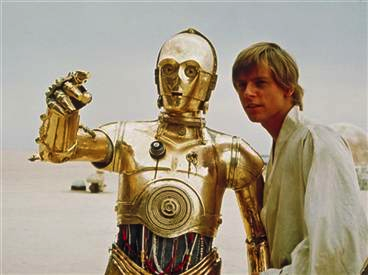
Machines that can think like and interact with humans beings is the goal of Artificial Intelligence (AI).  While holding a conversation with a C3PO or R2D2 is unlikely in the near future, the possibility of holding an intelligent conversation with a machine is not as preposterous or as far away as one might think.  Consider just how unrealistic, preposterous, and futuristic today's technology would have seemed just twenty or thirty years ago.  Imagine your grandfather's reaction if you told him that you foresaw a world in which:

  • Everyone will be connected by an invisible but all pervasive thing called the Internet.  We will access this Internet through computers (machines that can calculate faster than humans can think, play chess and beat the worlds best Chess Masters, and fly unmanned drones that can kill from miles in the sky), handheld phones called SMART phones (pocket sized computers), and tablet computers that look much like the slates seen on Star Trek with which one can store a digital library larger than the Library of Congress, read magazines and newspapers from around the world (mostly free), listen to music, watch streaming movies, shop online, take colleges courses online, book travel arrangements, access a map of your city or of the world, play games, socialize through something to be called Social Media, look up restaurant reviews, keep up with breaking news through Tweets (140 character ubiquitous updates), and search the Internet for almost anything you need to know.

  • Using computers, SMART phones, or tablets, we will connect to the Internet wirelessly from virtually anywhere.

  • Print books will slowly be replaced by digital books.

  • We will be able to call a digital assistant named Siri and ask her for directions, product suggestions, make an appointment, send an email, send a text message, search the Internet, suggest a restaurant, check the weather, calculate a large equation, or create a reminder for us all by voice and she will often do so with a sense of humor.

  • There will be driverless cars and pilotless planes

  • We will send a pilotless rover to Mars that will scamper about on the surface of the planet sending back photos for several years.

  • We will have voice enabled handheld mobile Global Positioning Systems on phones, tablets, and dedicated GPS devices) that communicate with satellites in space  that will give us turn-by-turn directions to our destination.

What once seemed preposterous, the stuff of science fiction, is now commonplace, illustrating that the uniformed and unimaginative dismiss the capacities and likelihood of AI to their own peril.  Consider this summary of research on the progress and promise of AI:

When will human-level AIs finally arrive? We don’t mean the narrow-AI software that already runs our trading systems, video games, battlebots and fraud detection systems. Those are great as far as they go, but when will we have really intelligent systems like C3PO, R2D2 and even beyond? When will we have Artificial General Intelligences (AGIs) we can talk to? Ones as smart as we are, or smarter?

Well, as Yogi Berra said, “it’s tough to predict, especially about the future.” But what do experts working on human-level AI think? To find out, we surveyed a number of leading specialists at the Artificial General Intelligence conference (AGI-09) in Washington DC in March 2009. These are the experts most involved in working toward the advanced AIs we’re talking about ... The majority of the experts who participated in our study were optimistic about AGI coming fairly quickly, although a few were more pessimistic about the timing. It is worth noting, however, that all the experts in our study, even the most pessimistic ones, gave at least a 10% chance of some AGI milestones being achieved within a few decades ... In broad terms, our results concur with those of the two studies mentioned above. All three studies suggest that significant numbers of interested, informed individuals believe it is likely that AGI at the human level or beyond will occur around the middle of this century, and plausibly even sooner. **

AI and Robot Teachers

Mobile technology and ubiquitous access to the Internet combined with online learning have many suggesting that the days of the traditional classroom teacher are limited.  Although hardly ready to take over the class, meet Saya, the substitute robot teacher.

Japanese School Tests Robot Teacher

Crude yes, but by what standard?  Twenty years ago this would have been amazing.  What will Saya be capable of 20 years from now?  The questions is not what is possible now but what may be possible in the not too distant future?

I am not ready to dismiss AI or robots or some other yet to be imagined technology as capable of teaching if one defines teaching as conveying information, assessing knowledge and measurable skills, and then customizing a new teaching routine to address identified weaknesses.  Such technology is already available in rudimentary form through computer aided instruction (CAI).

Teaching versus Educating

However, the transmission of information and the use of sophisticated algorithms to customize lessons and testing are not the same thing as educating students.  Transmitting knowledge is necessary for a good education but is not sufficient.  Teaching and educating are not necessarily synonymous.  No matter how sophisticated our technology becomes, it is doubtful that it can replace educators.  Here is why; the transfer of information does not:

  • Equal nor impart wisdom

  • Provide a role model

  • Convey passion and a love of a subject

  • Discipline

  • Build relationships nor teach how to navigate difficult relationships

  • Add the emotional element vital to learning

  • Question deeply by engaging in Socratic dialog

  • Mentor students

  • Serve students

  • Pray for students

  • Love students

Technology can only be conceived as a replacement for traditional classroom teachers if we reduce teaching to the transfer of information, drilling skills, and preparation for test taking.  Sadly, too many teachers have been reduced to this mundane level: such teachers ARE replaceable.

Loving, wise, dedicated, servant-hearted, educators who mentor, pray for, and discipline their students will never be replaced.  They have nothing to fear from technology.  For such educators, technology is their servant, not their masters or replacements.

Sources

http://www.npr.org/blogs/alltechconsidered/2012/04/24/151308789/for-automatic-essay-graders-efficiency-trumps-accuracy

** http://hplusmagazine.com/2010/02/05/how-long-till-human-level-ai/